> ## Documentation Index
> Fetch the complete documentation index at: https://docs.tensor9.com/llms.txt
> Use this file to discover all available pages before exploring further.
# CloudFormation
AWS CloudFormation is a native AWS infrastructure-as-code tool that can be used with Tensor9. A CloudFormation origin stack is a standard CloudFormation template that Tensor9 compiles into customer-specific deployment stacks for each appliance.
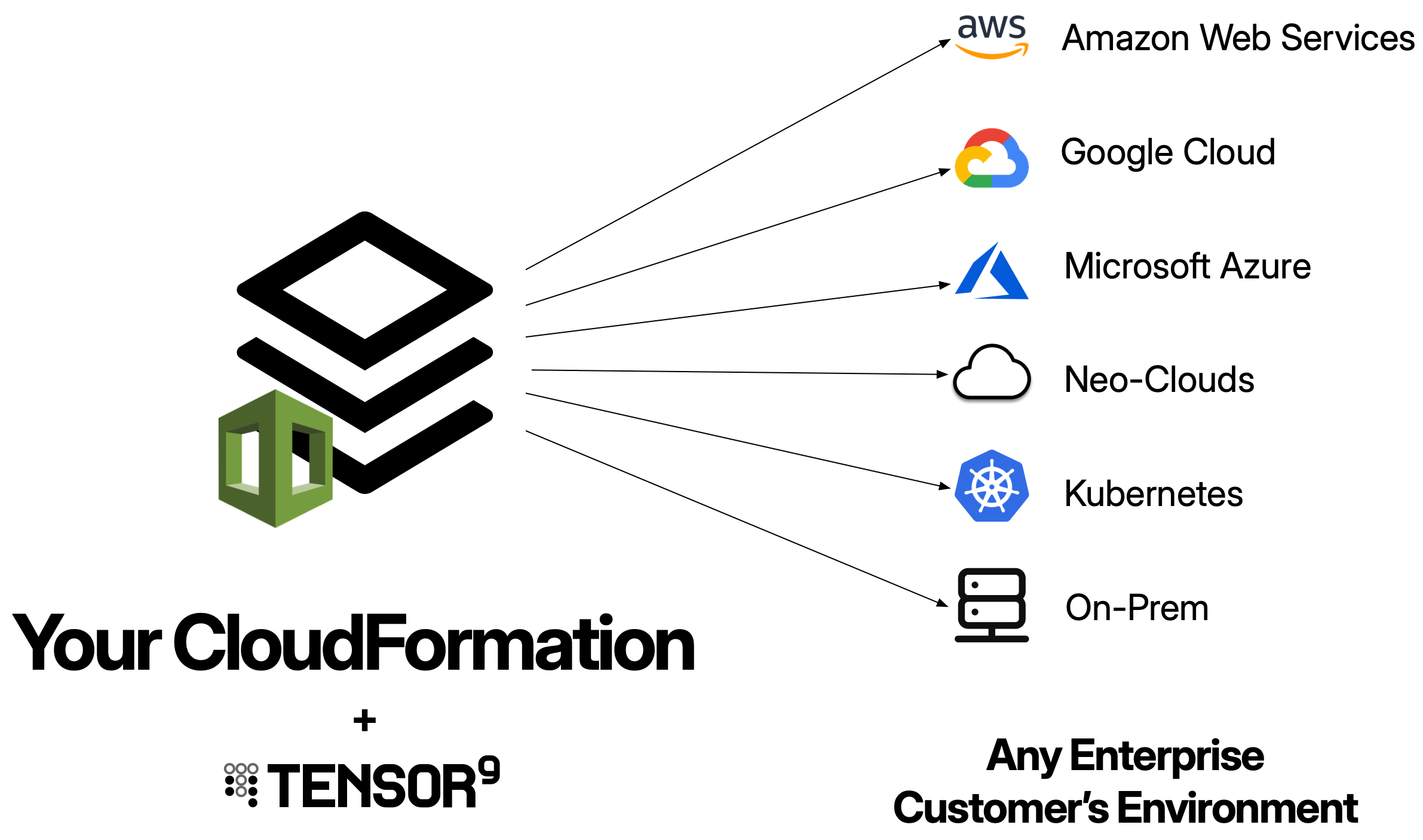
 ## What is a CloudFormation origin stack?
A CloudFormation origin stack is your existing CloudFormation template - the YAML or JSON file that defines your application's AWS infrastructure. Tensor9 uses this as the blueprint to generate deployment stacks tailored to each customer's appliance.
When you publish a CloudFormation origin stack to Tensor9, you use the AWS CLI to:
1. Create or update a CloudFormation stack in your control plane's AWS account
2. Store the template as the source for generating deployment stacks
3. Use it as the blueprint for creating appliance-specific stacks
The key difference from standard CloudFormation usage: **you maintain one origin stack** that Tensor9 compiles into many deployment stacks - one per customer appliance.
Your origin stack should be your existing CloudFormation template. Tensor9 is designed to work with the infrastructure-as-code you already have - you don't need to write a new template just for Tensor9. The goal is to maintain a single template that works for both your cloud deployment and private customer deployments.
CloudFormation origin stacks can only be deployed to AWS appliances. If you need to support multiple cloud providers, use Terraform or OpenTofu as your origin stack format.
## How CloudFormation origin stacks work
Using CloudFormation with Tensor9 follows a straightforward workflow:
You publish your CloudFormation template by using the AWS CLI to create or update a CloudFormation stack in your control plane's AWS account. This stack serves as the origin stack that Tensor9 will use as the blueprint for all appliance deployments.
When you want to deploy to an appliance, you create a release using `tensor9 stack release create`. During release creation, your control plane **compiles** your origin stack into a **deployment stack** tailored to that specific appliance, and **automatically creates the CloudFormation stack in your control plane**.
The compilation process:
* Injects the `InstanceId` parameter to ensure resource uniqueness
* Instruments the stack for observability (logs, metrics, traces)
* Rewrites artifact references to point to appliance-local locations
* Updates resource names to include the instance ID
The result is a **deployment stack** - a new CloudFormation stack that is automatically created in your control plane.
Your control plane automatically deploys the compiled deployment stack by creating a CloudFormation stack in your control plane's AWS account. You can monitor the deployment progress using:
```bash theme={null}
# View deployment status
tensor9 report -customerName acme-corp
# View CloudFormation stack events in your control plane's account
aws cloudformation describe-stack-events \
--stack-name myapp-stack-000000007e
```
The CloudFormation stack creates all the infrastructure resources in your control plane's AWS account automatically.
You write and maintain **one origin stack**. Tensor9 compiles it into **many deployment stacks** (one per appliance), each customized for that appliance. The control plane **automatically creates and manages these CloudFormation stacks** in your control plane's AWS account - you don't need to manually download or deploy anything.
## Prerequisites
Before using CloudFormation as an origin stack, ensure you have:
* **AWS CLI installed**: Version 2.0+ recommended for publishing your origin stack and monitoring deployments
* **Valid CloudFormation template**: Your template must pass CloudFormation validation
* **Tensor9 CLI installed**: For publishing your origin stack and creating releases
* **Tensor9 API key configured**: Set as `T9_API_KEY` environment variable
* **AWS credentials configured**: For publishing your origin stack to your control plane's AWS account
## CloudFormation template structure
Your CloudFormation origin stack should follow standard CloudFormation conventions:
### YAML template example
```yaml theme={null}
AWSTemplateFormatVersion: '2010-09-09'
Description: My Application Infrastructure
Parameters:
InstanceId:
Type: String
Description: Uniquely identifies the instance to deploy into
Resources:
# Your AWS resources here
Outputs:
# Your stack outputs here
```
### JSON template example
```json theme={null}
{
"AWSTemplateFormatVersion": "2010-09-09",
"Description": "My Application Infrastructure",
"Parameters": {
"InstanceId": {
"Type": "String",
"Description": "Uniquely identifies the instance to deploy into"
}
},
"Resources": {
},
"Outputs": {
}
}
```
## Publishing your CloudFormation origin stack
To make your CloudFormation template available to Tensor9, use the AWS CLI to create a CloudFormation stack in your control plane's AWS account:
```bash theme={null}
aws cloudformation create-stack \
--stack-name myapp-origin-stack \
--template-body file://template.yaml \
--capabilities CAPABILITY_IAM
```
Or if updating an existing origin stack:
```bash theme={null}
aws cloudformation update-stack \
--stack-name myapp-origin-stack \
--template-body file://template.yaml \
--capabilities CAPABILITY_IAM
```
### What gets published
When you create or update the CloudFormation stack:
1. CloudFormation validates and stores your template in your control plane's AWS account
2. The stack name becomes the **native stack ID** you'll use to bind the stack to your app
3. Tensor9 uses this stack as the source template for generating deployment stacks
**Example output:**
```
{
"StackId": "arn:aws:cloudformation:us-west-2:123456789012:stack/myapp-origin-stack/abcd1234"
}
```
The native stack ID for binding is simply the stack name: `myapp-origin-stack`
### Publishing updates
When you make changes to your CloudFormation template, update the stack:
```bash theme={null}
# Update your template file
# Then update the CloudFormation stack
aws cloudformation update-stack \
--stack-name myapp-origin-stack \
--template-body file://template.yaml \
--capabilities CAPABILITY_IAM
```
The updated template becomes available for creating new releases. Previously deployed appliances continue running their current version until you create and deploy a new release.
## Binding your origin stack to an app
After publishing for the first time, bind your origin stack to your app using the CloudFormation stack name as the native stack ID:
```bash theme={null}
tensor9 stack bind \
-appName my-app \
-stackType CloudFormation \
-nativeStackId myapp-origin-stack
```
The native stack ID is simply the CloudFormation stack name you used when creating the stack with `aws cloudformation create-stack`.
**Important**: You only need to bind once. Future publishes of the same stack don't require re-binding.
## Parameterization
Parameterization is the process of making your origin stack capable of being deployed to multiple appliances without resource naming conflicts. This is the most critical requirement for a CloudFormation origin stack in Tensor9.
### The InstanceId parameter
Tensor9 automatically provides an `InstanceId` parameter to every deployment to ensure resource uniqueness across appliances. Your origin stack should declare this parameter:
```yaml theme={null}
Parameters:
InstanceId:
Type: String
Description: Uniquely identifies the instance to deploy into
```
Tensor9 automatically provides this value during compilation - you never need to manually set it.
### Using InstanceId for resource naming
Use `!Ref InstanceId` to make all resource names unique. This prevents conflicts when deploying to multiple customer appliances:
```yaml theme={null}
Resources:
# ✓ CORRECT: Unique per appliance
DataBucket:
Type: AWS::S3::Bucket
Properties:
BucketName: !Sub 'myapp-data-${InstanceId}'
Tags:
- Key: instance-id
Value: !Ref InstanceId
Database:
Type: AWS::RDS::DBInstance
Properties:
DBInstanceIdentifier: !Sub 'myapp-db-${InstanceId}'
Engine: postgres
Tags:
- Key: instance-id
Value: !Ref InstanceId
ApiFunction:
Type: AWS::Lambda::Function
Properties:
FunctionName: !Sub 'myapp-api-${InstanceId}'
Runtime: nodejs18.x
Handler: index.handler
Tags:
- Key: instance-id
Value: !Ref InstanceId
# ✗ INCORRECT: Will cause conflicts across appliances
DataBucket:
Type: AWS::S3::Bucket
Properties:
BucketName: 'myapp-data' # Multiple appliances will try to create the same bucket
```
### What to parameterize
Use `InstanceId` for:
* **Resource identifiers**: S3 bucket names, RDS identifiers, Lambda function names
* **IAM resources**: Role names, policy names
* **Networking**: VPC names, subnet tags, security group names
* **Logging**: CloudWatch log group names
* **Secret paths**: Secrets Manager secret names
**DNS names are managed automatically**: Tensor9 automatically generates DNS names for your appliances using either your vendor vanity domain or the customer's vanity domain (if they specified one). You don't need to include `InstanceId` in DNS records. See [Endpoints and DNS](/fundamentals/endpoints) for details.
Without proper parameterization, attempting to deploy to multiple appliances will result in resource creation failures as CloudFormation tries to create duplicate resources.
## Complete example origin stack
Here's a complete CloudFormation origin stack for a typical application:
```yaml theme={null}
AWSTemplateFormatVersion: '2010-09-09'
Description: My Application Infrastructure
Parameters:
InstanceId:
Type: String
Description: Uniquely identifies the instance to deploy into
ApiImage:
Type: String
Description: Container image for the API
DbPassword:
Type: String
Description: Database master password
NoEcho: true
Resources:
# VPC
VPC:
Type: AWS::EC2::VPC
Properties:
CidrBlock: 10.0.0.0/16
EnableDnsHostnames: true
EnableDnsSupport: true
Tags:
- Key: Name
Value: !Sub 'myapp-vpc-${InstanceId}'
- Key: instance-id
Value: !Ref InstanceId
# Private subnets
PrivateSubnet1:
Type: AWS::EC2::Subnet
Properties:
VpcId: !Ref VPC
CidrBlock: 10.0.1.0/24
AvailabilityZone: !Select [0, !GetAZs '']
Tags:
- Key: Name
Value: !Sub 'myapp-private-1-${InstanceId}'
- Key: instance-id
Value: !Ref InstanceId
PrivateSubnet2:
Type: AWS::EC2::Subnet
Properties:
VpcId: !Ref VPC
CidrBlock: 10.0.2.0/24
AvailabilityZone: !Select [1, !GetAZs '']
Tags:
- Key: Name
Value: !Sub 'myapp-private-2-${InstanceId}'
- Key: instance-id
Value: !Ref InstanceId
# ECS Cluster
ECSCluster:
Type: AWS::ECS::Cluster
Properties:
ClusterName: !Sub 'myapp-cluster-${InstanceId}'
Tags:
- Key: instance-id
Value: !Ref InstanceId
# ECS Task Definition
TaskDefinition:
Type: AWS::ECS::TaskDefinition
Properties:
Family: !Sub 'myapp-${InstanceId}'
NetworkMode: awsvpc
RequiresCompatibilities:
- FARGATE
Cpu: '256'
Memory: '512'
ContainerDefinitions:
- Name: api
Image: !Ref ApiImage
PortMappings:
- ContainerPort: 8080
Protocol: tcp
Environment:
- Name: INSTANCE_ID
Value: !Ref InstanceId
- Name: DB_HOST
Value: !GetAtt Database.Endpoint.Address
LogConfiguration:
LogDriver: awslogs
Options:
awslogs-group: !Ref LogGroup
awslogs-region: !Ref AWS::Region
awslogs-stream-prefix: api
Tags:
- Key: instance-id
Value: !Ref InstanceId
# ECS Service
ECSService:
Type: AWS::ECS::Service
Properties:
ServiceName: !Sub 'myapp-service-${InstanceId}'
Cluster: !Ref ECSCluster
TaskDefinition: !Ref TaskDefinition
DesiredCount: 2
LaunchType: FARGATE
NetworkConfiguration:
AwsvpcConfiguration:
Subnets:
- !Ref PrivateSubnet1
- !Ref PrivateSubnet2
SecurityGroups:
- !Ref ECSSecurityGroup
Tags:
- Key: instance-id
Value: !Ref InstanceId
# RDS PostgreSQL
DBSubnetGroup:
Type: AWS::RDS::DBSubnetGroup
Properties:
DBSubnetGroupName: !Sub 'myapp-db-subnet-${InstanceId}'
DBSubnetGroupDescription: Database subnet group
SubnetIds:
- !Ref PrivateSubnet1
- !Ref PrivateSubnet2
Tags:
- Key: instance-id
Value: !Ref InstanceId
Database:
Type: AWS::RDS::DBInstance
Properties:
DBInstanceIdentifier: !Sub 'myapp-db-${InstanceId}'
Engine: postgres
EngineVersion: '15.3'
DBInstanceClass: db.t3.micro
AllocatedStorage: 20
DBName: myapp
MasterUsername: admin
MasterUserPassword: !Ref DbPassword
DBSubnetGroupName: !Ref DBSubnetGroup
VPCSecurityGroups:
- !Ref DBSecurityGroup
Tags:
- Key: instance-id
Value: !Ref InstanceId
# S3 bucket
DataBucket:
Type: AWS::S3::Bucket
Properties:
BucketName: !Sub 'myapp-data-${InstanceId}'
VersioningConfiguration:
Status: Enabled
Tags:
- Key: instance-id
Value: !Ref InstanceId
# ElastiCache Redis
CacheSubnetGroup:
Type: AWS::ElastiCache::SubnetGroup
Properties:
Description: Cache subnet group
SubnetIds:
- !Ref PrivateSubnet1
- !Ref PrivateSubnet2
RedisCluster:
Type: AWS::ElastiCache::CacheCluster
Properties:
CacheClusterId: !Sub 'myapp-redis-${InstanceId}'
Engine: redis
CacheNodeType: cache.t3.micro
NumCacheNodes: 1
CacheSubnetGroupName: !Ref CacheSubnetGroup
VpcSecurityGroupIds:
- !Ref RedisSecurityGroup
Tags:
- Key: instance-id
Value: !Ref InstanceId
# CloudWatch Log Group
LogGroup:
Type: AWS::Logs::LogGroup
Properties:
LogGroupName: !Sub '/aws/ecs/myapp-${InstanceId}'
RetentionInDays: 7
# Security Groups
ECSSecurityGroup:
Type: AWS::EC2::SecurityGroup
Properties:
GroupName: !Sub 'myapp-ecs-sg-${InstanceId}'
GroupDescription: Security group for ECS tasks
VpcId: !Ref VPC
Tags:
- Key: instance-id
Value: !Ref InstanceId
DBSecurityGroup:
Type: AWS::EC2::SecurityGroup
Properties:
GroupName: !Sub 'myapp-db-sg-${InstanceId}'
GroupDescription: Security group for database
VpcId: !Ref VPC
SecurityGroupIngress:
- IpProtocol: tcp
FromPort: 5432
ToPort: 5432
SourceSecurityGroupId: !Ref ECSSecurityGroup
Tags:
- Key: instance-id
Value: !Ref InstanceId
RedisSecurityGroup:
Type: AWS::EC2::SecurityGroup
Properties:
GroupName: !Sub 'myapp-redis-sg-${InstanceId}'
GroupDescription: Security group for Redis
VpcId: !Ref VPC
SecurityGroupIngress:
- IpProtocol: tcp
FromPort: 6379
ToPort: 6379
SourceSecurityGroupId: !Ref ECSSecurityGroup
Tags:
- Key: instance-id
Value: !Ref InstanceId
# Secrets
DBPasswordSecret:
Type: AWS::SecretsManager::Secret
Properties:
Name: !Sub '${InstanceId}/prod/db/password'
SecretString: !Ref DbPassword
Tags:
- Key: instance-id
Value: !Ref InstanceId
Outputs:
ClusterName:
Description: ECS cluster name
Value: !Ref ECSCluster
DatabaseEndpoint:
Description: RDS database endpoint
Value: !GetAtt Database.Endpoint.Address
RedisEndpoint:
Description: Redis cache endpoint
Value: !GetAtt RedisCluster.RedisEndpoint.Address
DataBucketName:
Description: S3 data bucket name
Value: !Ref DataBucket
```
## Parameters
Define parameters for values that vary per deployment:
```yaml theme={null}
Parameters:
InstanceId:
Type: String
Description: Uniquely identifies the instance to deploy into
ApiImage:
Type: String
Description: Container image URI
DbPassword:
Type: String
Description: Database master password
NoEcho: true
```
When creating a release, Tensor9 automatically provides the `InstanceId` parameter. Other parameters like container images are detected and injected during compilation. Sensitive parameters like `DbPassword` can be stored in AWS Secrets Manager in the customer's account and referenced via `!Sub '{{resolve:secretsmanager:${InstanceId}/prod/db/password}}'`.
## Outputs
Define outputs to expose important values after deployment:
```yaml theme={null}
Outputs:
ApiEndpoint:
Description: API endpoint URL
Value: !GetAtt LoadBalancer.DNSName
DatabaseEndpoint:
Description: Database connection endpoint
Value: !GetAtt Database.Endpoint.Address
DataBucketName:
Description: S3 data bucket name
Value: !Ref DataBucket
```
After deployment, view outputs using the AWS CLI:
```bash theme={null}
aws cloudformation describe-stacks \
--stack-name myapp-stack \
--query 'Stacks[0].Outputs'
```
Outputs are also visible in `tensor9 report`.
## Best practices
Every AWS resource with a name or identifier should include `InstanceId` to prevent conflicts across customer appliances:
```yaml theme={null}
# ✓ CORRECT
Resources:
DataBucket:
Type: AWS::S3::Bucket
Properties:
BucketName: !Sub 'myapp-data-${InstanceId}'
LambdaRole:
Type: AWS::IAM::Role
Properties:
RoleName: !Sub 'myapp-lambda-${InstanceId}'
# ✗ INCORRECT - Will cause collisions
Resources:
DataBucket:
Type: AWS::S3::Bucket
Properties:
BucketName: 'myapp-data'
```
Apply the `instance-id` tag to every resource:
```yaml theme={null}
Tags:
- Key: instance-id
Value: !Ref InstanceId
```
This enables:
* IAM permission scoping
* CloudWatch filtering
* Cost tracking
* Resource discovery
Never hardcode secrets. Use Secrets Manager with parameterized names:
```yaml theme={null}
ApiKeySecret:
Type: AWS::SecretsManager::Secret
Properties:
Name: !Sub '${InstanceId}/prod/api/key'
SecretString: !Ref ApiKey
```
## Troubleshooting
**Symptom**: `aws cloudformation create-stack` fails with CloudFormation validation errors.
**Solutions**:
* Run `aws cloudformation validate-template` locally to identify syntax errors
* Ensure all required parameters are declared
* Check that all resource references are valid
* Verify resource property names and types match CloudFormation specification
**Symptom**: Release creation shows CloudFormation stack creation failed with "AlreadyExists" errors in your control plane.
**Solutions**:
* Ensure all resource names include `!Sub` with `${InstanceId}`
* Verify the `InstanceId` parameter is being properly used in your origin stack
* Check that no hardcoded resource names exist in your template
* For S3 buckets, remember they must be globally unique - include both app name and InstanceId
* Review CloudFormation stack events in your control plane's account: `aws cloudformation describe-stack-events --stack-name `
**Symptom**: "InsufficientCapacity" or quota limit errors during deployment.
**Solutions**:
* Check AWS service quotas for your control plane's account
* Reduce initial resource counts and scale up after deployment
* Deploy resources across multiple availability zones to increase capacity
* Request quota increases from AWS if needed
**Symptom**: "Template too large" error when publishing or deploying.
**Solutions**:
* Use CloudFormation modules for reusable components
* Store large template bodies in S3 and reference by URL
* Consider using Terraform instead of CloudFormation for complex infrastructure
## Limitations and considerations
CloudFormation origin stacks can only be deployed to AWS appliances. CloudFormation is an AWS-specific infrastructure-as-code tool that only works within AWS environments. If you need to support multiple cloud providers (Google Cloud, Azure, DigitalOcean) or private Kubernetes environments, use Terraform or OpenTofu as your origin stack format instead.
Tensor9 does not currently support CloudFormation nested stacks (stacks that reference other stacks using `AWS::CloudFormation::Stack`). If your infrastructure requires modularity, consider using CloudFormation modules, or migrating to Terraform which supports module composition.
## Next steps
Now that you understand CloudFormation origin stacks, explore these topics:
* [**Quick Start: CloudFormation**](/getting-started/quick-start-cloudformation): Step-by-step guide to your first CloudFormation deployment
* [**Deployments**](/fundamentals/deployments): How to create releases and deploy
* [**AWS Form Factor**](/form-factor/aws): Deploy to AWS customer environments
* [**Testing**](/fundamentals/testing): Validate your origin stack in test appliances
## What is a CloudFormation origin stack?
A CloudFormation origin stack is your existing CloudFormation template - the YAML or JSON file that defines your application's AWS infrastructure. Tensor9 uses this as the blueprint to generate deployment stacks tailored to each customer's appliance.
When you publish a CloudFormation origin stack to Tensor9, you use the AWS CLI to:
1. Create or update a CloudFormation stack in your control plane's AWS account
2. Store the template as the source for generating deployment stacks
3. Use it as the blueprint for creating appliance-specific stacks
The key difference from standard CloudFormation usage: **you maintain one origin stack** that Tensor9 compiles into many deployment stacks - one per customer appliance.
Your origin stack should be your existing CloudFormation template. Tensor9 is designed to work with the infrastructure-as-code you already have - you don't need to write a new template just for Tensor9. The goal is to maintain a single template that works for both your cloud deployment and private customer deployments.
CloudFormation origin stacks can only be deployed to AWS appliances. If you need to support multiple cloud providers, use Terraform or OpenTofu as your origin stack format.
## How CloudFormation origin stacks work
Using CloudFormation with Tensor9 follows a straightforward workflow:
You publish your CloudFormation template by using the AWS CLI to create or update a CloudFormation stack in your control plane's AWS account. This stack serves as the origin stack that Tensor9 will use as the blueprint for all appliance deployments.
When you want to deploy to an appliance, you create a release using `tensor9 stack release create`. During release creation, your control plane **compiles** your origin stack into a **deployment stack** tailored to that specific appliance, and **automatically creates the CloudFormation stack in your control plane**.
The compilation process:
* Injects the `InstanceId` parameter to ensure resource uniqueness
* Instruments the stack for observability (logs, metrics, traces)
* Rewrites artifact references to point to appliance-local locations
* Updates resource names to include the instance ID
The result is a **deployment stack** - a new CloudFormation stack that is automatically created in your control plane.
Your control plane automatically deploys the compiled deployment stack by creating a CloudFormation stack in your control plane's AWS account. You can monitor the deployment progress using:
```bash theme={null}
# View deployment status
tensor9 report -customerName acme-corp
# View CloudFormation stack events in your control plane's account
aws cloudformation describe-stack-events \
--stack-name myapp-stack-000000007e
```
The CloudFormation stack creates all the infrastructure resources in your control plane's AWS account automatically.
You write and maintain **one origin stack**. Tensor9 compiles it into **many deployment stacks** (one per appliance), each customized for that appliance. The control plane **automatically creates and manages these CloudFormation stacks** in your control plane's AWS account - you don't need to manually download or deploy anything.
## Prerequisites
Before using CloudFormation as an origin stack, ensure you have:
* **AWS CLI installed**: Version 2.0+ recommended for publishing your origin stack and monitoring deployments
* **Valid CloudFormation template**: Your template must pass CloudFormation validation
* **Tensor9 CLI installed**: For publishing your origin stack and creating releases
* **Tensor9 API key configured**: Set as `T9_API_KEY` environment variable
* **AWS credentials configured**: For publishing your origin stack to your control plane's AWS account
## CloudFormation template structure
Your CloudFormation origin stack should follow standard CloudFormation conventions:
### YAML template example
```yaml theme={null}
AWSTemplateFormatVersion: '2010-09-09'
Description: My Application Infrastructure
Parameters:
InstanceId:
Type: String
Description: Uniquely identifies the instance to deploy into
Resources:
# Your AWS resources here
Outputs:
# Your stack outputs here
```
### JSON template example
```json theme={null}
{
"AWSTemplateFormatVersion": "2010-09-09",
"Description": "My Application Infrastructure",
"Parameters": {
"InstanceId": {
"Type": "String",
"Description": "Uniquely identifies the instance to deploy into"
}
},
"Resources": {
},
"Outputs": {
}
}
```
## Publishing your CloudFormation origin stack
To make your CloudFormation template available to Tensor9, use the AWS CLI to create a CloudFormation stack in your control plane's AWS account:
```bash theme={null}
aws cloudformation create-stack \
--stack-name myapp-origin-stack \
--template-body file://template.yaml \
--capabilities CAPABILITY_IAM
```
Or if updating an existing origin stack:
```bash theme={null}
aws cloudformation update-stack \
--stack-name myapp-origin-stack \
--template-body file://template.yaml \
--capabilities CAPABILITY_IAM
```
### What gets published
When you create or update the CloudFormation stack:
1. CloudFormation validates and stores your template in your control plane's AWS account
2. The stack name becomes the **native stack ID** you'll use to bind the stack to your app
3. Tensor9 uses this stack as the source template for generating deployment stacks
**Example output:**
```
{
"StackId": "arn:aws:cloudformation:us-west-2:123456789012:stack/myapp-origin-stack/abcd1234"
}
```
The native stack ID for binding is simply the stack name: `myapp-origin-stack`
### Publishing updates
When you make changes to your CloudFormation template, update the stack:
```bash theme={null}
# Update your template file
# Then update the CloudFormation stack
aws cloudformation update-stack \
--stack-name myapp-origin-stack \
--template-body file://template.yaml \
--capabilities CAPABILITY_IAM
```
The updated template becomes available for creating new releases. Previously deployed appliances continue running their current version until you create and deploy a new release.
## Binding your origin stack to an app
After publishing for the first time, bind your origin stack to your app using the CloudFormation stack name as the native stack ID:
```bash theme={null}
tensor9 stack bind \
-appName my-app \
-stackType CloudFormation \
-nativeStackId myapp-origin-stack
```
The native stack ID is simply the CloudFormation stack name you used when creating the stack with `aws cloudformation create-stack`.
**Important**: You only need to bind once. Future publishes of the same stack don't require re-binding.
## Parameterization
Parameterization is the process of making your origin stack capable of being deployed to multiple appliances without resource naming conflicts. This is the most critical requirement for a CloudFormation origin stack in Tensor9.
### The InstanceId parameter
Tensor9 automatically provides an `InstanceId` parameter to every deployment to ensure resource uniqueness across appliances. Your origin stack should declare this parameter:
```yaml theme={null}
Parameters:
InstanceId:
Type: String
Description: Uniquely identifies the instance to deploy into
```
Tensor9 automatically provides this value during compilation - you never need to manually set it.
### Using InstanceId for resource naming
Use `!Ref InstanceId` to make all resource names unique. This prevents conflicts when deploying to multiple customer appliances:
```yaml theme={null}
Resources:
# ✓ CORRECT: Unique per appliance
DataBucket:
Type: AWS::S3::Bucket
Properties:
BucketName: !Sub 'myapp-data-${InstanceId}'
Tags:
- Key: instance-id
Value: !Ref InstanceId
Database:
Type: AWS::RDS::DBInstance
Properties:
DBInstanceIdentifier: !Sub 'myapp-db-${InstanceId}'
Engine: postgres
Tags:
- Key: instance-id
Value: !Ref InstanceId
ApiFunction:
Type: AWS::Lambda::Function
Properties:
FunctionName: !Sub 'myapp-api-${InstanceId}'
Runtime: nodejs18.x
Handler: index.handler
Tags:
- Key: instance-id
Value: !Ref InstanceId
# ✗ INCORRECT: Will cause conflicts across appliances
DataBucket:
Type: AWS::S3::Bucket
Properties:
BucketName: 'myapp-data' # Multiple appliances will try to create the same bucket
```
### What to parameterize
Use `InstanceId` for:
* **Resource identifiers**: S3 bucket names, RDS identifiers, Lambda function names
* **IAM resources**: Role names, policy names
* **Networking**: VPC names, subnet tags, security group names
* **Logging**: CloudWatch log group names
* **Secret paths**: Secrets Manager secret names
**DNS names are managed automatically**: Tensor9 automatically generates DNS names for your appliances using either your vendor vanity domain or the customer's vanity domain (if they specified one). You don't need to include `InstanceId` in DNS records. See [Endpoints and DNS](/fundamentals/endpoints) for details.
Without proper parameterization, attempting to deploy to multiple appliances will result in resource creation failures as CloudFormation tries to create duplicate resources.
## Complete example origin stack
Here's a complete CloudFormation origin stack for a typical application:
```yaml theme={null}
AWSTemplateFormatVersion: '2010-09-09'
Description: My Application Infrastructure
Parameters:
InstanceId:
Type: String
Description: Uniquely identifies the instance to deploy into
ApiImage:
Type: String
Description: Container image for the API
DbPassword:
Type: String
Description: Database master password
NoEcho: true
Resources:
# VPC
VPC:
Type: AWS::EC2::VPC
Properties:
CidrBlock: 10.0.0.0/16
EnableDnsHostnames: true
EnableDnsSupport: true
Tags:
- Key: Name
Value: !Sub 'myapp-vpc-${InstanceId}'
- Key: instance-id
Value: !Ref InstanceId
# Private subnets
PrivateSubnet1:
Type: AWS::EC2::Subnet
Properties:
VpcId: !Ref VPC
CidrBlock: 10.0.1.0/24
AvailabilityZone: !Select [0, !GetAZs '']
Tags:
- Key: Name
Value: !Sub 'myapp-private-1-${InstanceId}'
- Key: instance-id
Value: !Ref InstanceId
PrivateSubnet2:
Type: AWS::EC2::Subnet
Properties:
VpcId: !Ref VPC
CidrBlock: 10.0.2.0/24
AvailabilityZone: !Select [1, !GetAZs '']
Tags:
- Key: Name
Value: !Sub 'myapp-private-2-${InstanceId}'
- Key: instance-id
Value: !Ref InstanceId
# ECS Cluster
ECSCluster:
Type: AWS::ECS::Cluster
Properties:
ClusterName: !Sub 'myapp-cluster-${InstanceId}'
Tags:
- Key: instance-id
Value: !Ref InstanceId
# ECS Task Definition
TaskDefinition:
Type: AWS::ECS::TaskDefinition
Properties:
Family: !Sub 'myapp-${InstanceId}'
NetworkMode: awsvpc
RequiresCompatibilities:
- FARGATE
Cpu: '256'
Memory: '512'
ContainerDefinitions:
- Name: api
Image: !Ref ApiImage
PortMappings:
- ContainerPort: 8080
Protocol: tcp
Environment:
- Name: INSTANCE_ID
Value: !Ref InstanceId
- Name: DB_HOST
Value: !GetAtt Database.Endpoint.Address
LogConfiguration:
LogDriver: awslogs
Options:
awslogs-group: !Ref LogGroup
awslogs-region: !Ref AWS::Region
awslogs-stream-prefix: api
Tags:
- Key: instance-id
Value: !Ref InstanceId
# ECS Service
ECSService:
Type: AWS::ECS::Service
Properties:
ServiceName: !Sub 'myapp-service-${InstanceId}'
Cluster: !Ref ECSCluster
TaskDefinition: !Ref TaskDefinition
DesiredCount: 2
LaunchType: FARGATE
NetworkConfiguration:
AwsvpcConfiguration:
Subnets:
- !Ref PrivateSubnet1
- !Ref PrivateSubnet2
SecurityGroups:
- !Ref ECSSecurityGroup
Tags:
- Key: instance-id
Value: !Ref InstanceId
# RDS PostgreSQL
DBSubnetGroup:
Type: AWS::RDS::DBSubnetGroup
Properties:
DBSubnetGroupName: !Sub 'myapp-db-subnet-${InstanceId}'
DBSubnetGroupDescription: Database subnet group
SubnetIds:
- !Ref PrivateSubnet1
- !Ref PrivateSubnet2
Tags:
- Key: instance-id
Value: !Ref InstanceId
Database:
Type: AWS::RDS::DBInstance
Properties:
DBInstanceIdentifier: !Sub 'myapp-db-${InstanceId}'
Engine: postgres
EngineVersion: '15.3'
DBInstanceClass: db.t3.micro
AllocatedStorage: 20
DBName: myapp
MasterUsername: admin
MasterUserPassword: !Ref DbPassword
DBSubnetGroupName: !Ref DBSubnetGroup
VPCSecurityGroups:
- !Ref DBSecurityGroup
Tags:
- Key: instance-id
Value: !Ref InstanceId
# S3 bucket
DataBucket:
Type: AWS::S3::Bucket
Properties:
BucketName: !Sub 'myapp-data-${InstanceId}'
VersioningConfiguration:
Status: Enabled
Tags:
- Key: instance-id
Value: !Ref InstanceId
# ElastiCache Redis
CacheSubnetGroup:
Type: AWS::ElastiCache::SubnetGroup
Properties:
Description: Cache subnet group
SubnetIds:
- !Ref PrivateSubnet1
- !Ref PrivateSubnet2
RedisCluster:
Type: AWS::ElastiCache::CacheCluster
Properties:
CacheClusterId: !Sub 'myapp-redis-${InstanceId}'
Engine: redis
CacheNodeType: cache.t3.micro
NumCacheNodes: 1
CacheSubnetGroupName: !Ref CacheSubnetGroup
VpcSecurityGroupIds:
- !Ref RedisSecurityGroup
Tags:
- Key: instance-id
Value: !Ref InstanceId
# CloudWatch Log Group
LogGroup:
Type: AWS::Logs::LogGroup
Properties:
LogGroupName: !Sub '/aws/ecs/myapp-${InstanceId}'
RetentionInDays: 7
# Security Groups
ECSSecurityGroup:
Type: AWS::EC2::SecurityGroup
Properties:
GroupName: !Sub 'myapp-ecs-sg-${InstanceId}'
GroupDescription: Security group for ECS tasks
VpcId: !Ref VPC
Tags:
- Key: instance-id
Value: !Ref InstanceId
DBSecurityGroup:
Type: AWS::EC2::SecurityGroup
Properties:
GroupName: !Sub 'myapp-db-sg-${InstanceId}'
GroupDescription: Security group for database
VpcId: !Ref VPC
SecurityGroupIngress:
- IpProtocol: tcp
FromPort: 5432
ToPort: 5432
SourceSecurityGroupId: !Ref ECSSecurityGroup
Tags:
- Key: instance-id
Value: !Ref InstanceId
RedisSecurityGroup:
Type: AWS::EC2::SecurityGroup
Properties:
GroupName: !Sub 'myapp-redis-sg-${InstanceId}'
GroupDescription: Security group for Redis
VpcId: !Ref VPC
SecurityGroupIngress:
- IpProtocol: tcp
FromPort: 6379
ToPort: 6379
SourceSecurityGroupId: !Ref ECSSecurityGroup
Tags:
- Key: instance-id
Value: !Ref InstanceId
# Secrets
DBPasswordSecret:
Type: AWS::SecretsManager::Secret
Properties:
Name: !Sub '${InstanceId}/prod/db/password'
SecretString: !Ref DbPassword
Tags:
- Key: instance-id
Value: !Ref InstanceId
Outputs:
ClusterName:
Description: ECS cluster name
Value: !Ref ECSCluster
DatabaseEndpoint:
Description: RDS database endpoint
Value: !GetAtt Database.Endpoint.Address
RedisEndpoint:
Description: Redis cache endpoint
Value: !GetAtt RedisCluster.RedisEndpoint.Address
DataBucketName:
Description: S3 data bucket name
Value: !Ref DataBucket
```
## Parameters
Define parameters for values that vary per deployment:
```yaml theme={null}
Parameters:
InstanceId:
Type: String
Description: Uniquely identifies the instance to deploy into
ApiImage:
Type: String
Description: Container image URI
DbPassword:
Type: String
Description: Database master password
NoEcho: true
```
When creating a release, Tensor9 automatically provides the `InstanceId` parameter. Other parameters like container images are detected and injected during compilation. Sensitive parameters like `DbPassword` can be stored in AWS Secrets Manager in the customer's account and referenced via `!Sub '{{resolve:secretsmanager:${InstanceId}/prod/db/password}}'`.
## Outputs
Define outputs to expose important values after deployment:
```yaml theme={null}
Outputs:
ApiEndpoint:
Description: API endpoint URL
Value: !GetAtt LoadBalancer.DNSName
DatabaseEndpoint:
Description: Database connection endpoint
Value: !GetAtt Database.Endpoint.Address
DataBucketName:
Description: S3 data bucket name
Value: !Ref DataBucket
```
After deployment, view outputs using the AWS CLI:
```bash theme={null}
aws cloudformation describe-stacks \
--stack-name myapp-stack \
--query 'Stacks[0].Outputs'
```
Outputs are also visible in `tensor9 report`.
## Best practices
Every AWS resource with a name or identifier should include `InstanceId` to prevent conflicts across customer appliances:
```yaml theme={null}
# ✓ CORRECT
Resources:
DataBucket:
Type: AWS::S3::Bucket
Properties:
BucketName: !Sub 'myapp-data-${InstanceId}'
LambdaRole:
Type: AWS::IAM::Role
Properties:
RoleName: !Sub 'myapp-lambda-${InstanceId}'
# ✗ INCORRECT - Will cause collisions
Resources:
DataBucket:
Type: AWS::S3::Bucket
Properties:
BucketName: 'myapp-data'
```
Apply the `instance-id` tag to every resource:
```yaml theme={null}
Tags:
- Key: instance-id
Value: !Ref InstanceId
```
This enables:
* IAM permission scoping
* CloudWatch filtering
* Cost tracking
* Resource discovery
Never hardcode secrets. Use Secrets Manager with parameterized names:
```yaml theme={null}
ApiKeySecret:
Type: AWS::SecretsManager::Secret
Properties:
Name: !Sub '${InstanceId}/prod/api/key'
SecretString: !Ref ApiKey
```
## Troubleshooting
**Symptom**: `aws cloudformation create-stack` fails with CloudFormation validation errors.
**Solutions**:
* Run `aws cloudformation validate-template` locally to identify syntax errors
* Ensure all required parameters are declared
* Check that all resource references are valid
* Verify resource property names and types match CloudFormation specification
**Symptom**: Release creation shows CloudFormation stack creation failed with "AlreadyExists" errors in your control plane.
**Solutions**:
* Ensure all resource names include `!Sub` with `${InstanceId}`
* Verify the `InstanceId` parameter is being properly used in your origin stack
* Check that no hardcoded resource names exist in your template
* For S3 buckets, remember they must be globally unique - include both app name and InstanceId
* Review CloudFormation stack events in your control plane's account: `aws cloudformation describe-stack-events --stack-name `
**Symptom**: "InsufficientCapacity" or quota limit errors during deployment.
**Solutions**:
* Check AWS service quotas for your control plane's account
* Reduce initial resource counts and scale up after deployment
* Deploy resources across multiple availability zones to increase capacity
* Request quota increases from AWS if needed
**Symptom**: "Template too large" error when publishing or deploying.
**Solutions**:
* Use CloudFormation modules for reusable components
* Store large template bodies in S3 and reference by URL
* Consider using Terraform instead of CloudFormation for complex infrastructure
## Limitations and considerations
CloudFormation origin stacks can only be deployed to AWS appliances. CloudFormation is an AWS-specific infrastructure-as-code tool that only works within AWS environments. If you need to support multiple cloud providers (Google Cloud, Azure, DigitalOcean) or private Kubernetes environments, use Terraform or OpenTofu as your origin stack format instead.
Tensor9 does not currently support CloudFormation nested stacks (stacks that reference other stacks using `AWS::CloudFormation::Stack`). If your infrastructure requires modularity, consider using CloudFormation modules, or migrating to Terraform which supports module composition.
## Next steps
Now that you understand CloudFormation origin stacks, explore these topics:
* [**Quick Start: CloudFormation**](/getting-started/quick-start-cloudformation): Step-by-step guide to your first CloudFormation deployment
* [**Deployments**](/fundamentals/deployments): How to create releases and deploy
* [**AWS Form Factor**](/form-factor/aws): Deploy to AWS customer environments
* [**Testing**](/fundamentals/testing): Validate your origin stack in test appliances