> ## Documentation Index
> Fetch the complete documentation index at: https://docs.tensor9.com/llms.txt
> Use this file to discover all available pages before exploring further.
# Docker Compose
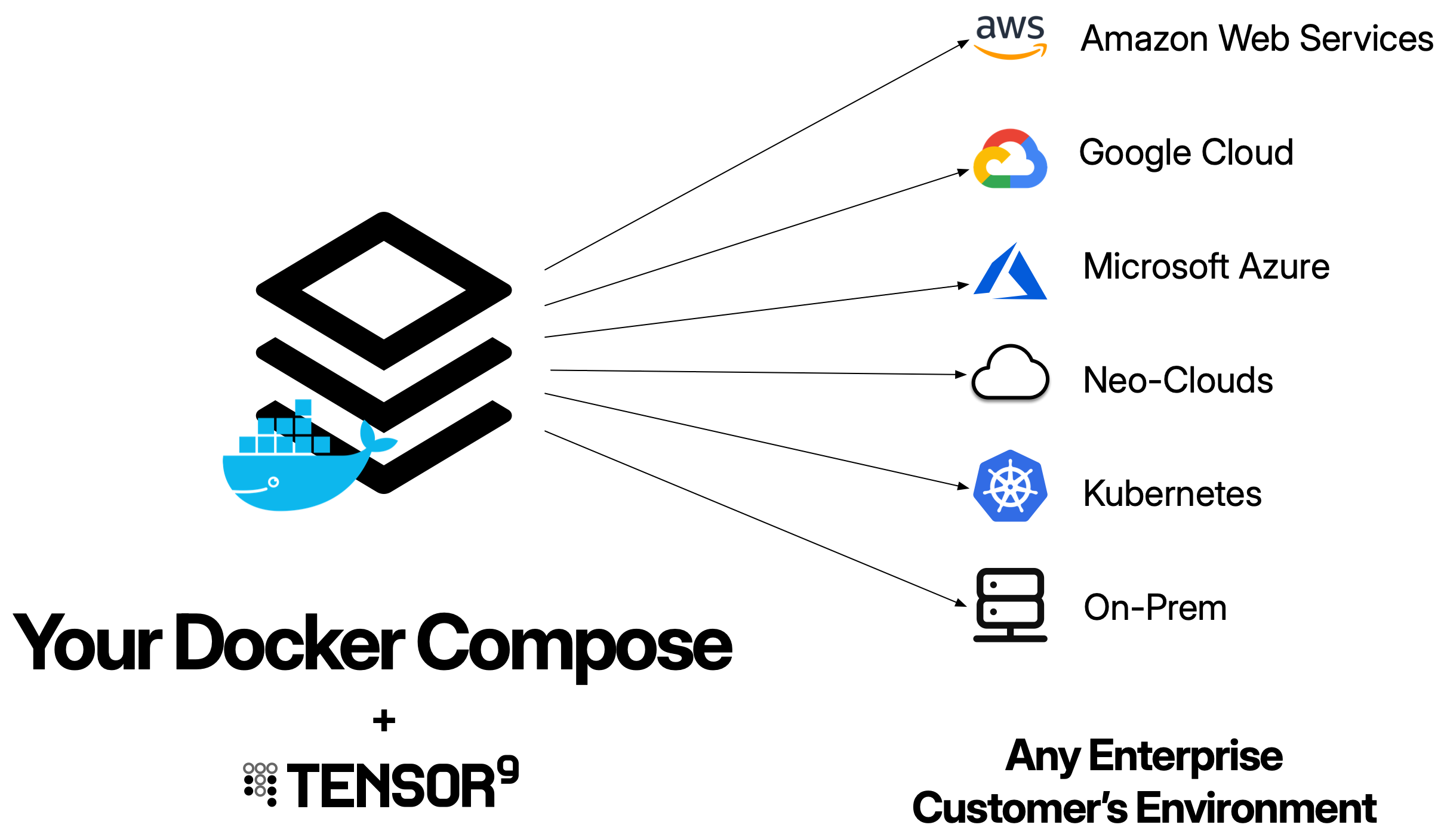
Docker Compose configurations can be used as origin stacks with Tensor9. A Docker Compose origin stack is a docker-compose.yml file that Tensor9 compiles into complete Kubernetes infrastructure stacks for each appliance across all cloud providers.
 ## What is a Docker Compose origin stack?
A Docker Compose origin stack is your existing docker-compose.yml file. Tensor9 takes your compose configuration and automatically generates all the necessary infrastructure (Kubernetes deployments, services, networking, storage) to run your multi-container application in customer environments - whether that's AWS, Google Cloud, Azure, DigitalOcean, or private Kubernetes clusters.
Tensor9 reads your compose file and maps each service to Kubernetes resources. Services with exposed ports get external load balancers, while internal services use Kubernetes service discovery for inter-service communication.
Your origin stack should be your existing Docker Compose configuration. Tensor9 is designed to work with the compose files you already have - you don't need to rebuild your application just for Tensor9. The goal is to maintain a single compose file that works for both your local development and private customer deployments.
## How Docker Compose origin stacks work
Your docker-compose.yml file is published to your control plane using `tensor9 stack publish`. Container images referenced in your compose file must be available when creating a release (but not when publishing).
When you create a release using `tensor9 stack release create`, your control plane **compiles** your Docker Compose configuration into a **complete Terraform deployment stack** that uses Kubernetes.
The compilation generates Kubernetes resources for each service:
**For each service in the compose file**:
* **Kubernetes Deployment**: Runs your container with specified replicas and resource limits
* **Container image**: Copied to the appliance's container registry
* **Service with `ports:`**: Gets a LoadBalancer Service for external access
* **Service with `expose:` only**: Gets a ClusterIP Service for internal-only access
* **Named volumes**: Mapped to PersistentVolumeClaims
* **Health checks**: Mapped to liveness and readiness probes
* **Secrets**: Mapped to Kubernetes Secrets
**Service dependencies**:
* Services with `depends_on` are deployed in order using Terraform dependencies
**Service discovery**:
* All services deployed in the same namespace
* Services can reach each other by service name (e.g., `http://api:8080`)
The result is a **deployment stack** - a Terraform configuration that defines all the Kubernetes resources needed to run your multi-container application in the target appliance's environment.
When deployed, the deployment stack copies all container images to the appliance's container registry.
Download the compiled deployment stack and deploy it using Terraform or OpenTofu:
```bash theme={null}
# Navigate to the deployment stack directory
cd my-test-appliance
# Initialize Terraform
tofu init
# Deploy the infrastructure
tofu apply
```
The Terraform deployment creates all the Kubernetes resources (deployments, services, persistent volumes, etc.) automatically and starts your containers.
Monitor the deployment using Terraform output and Kubernetes:
```bash theme={null}
# View deployment status
tensor9 report -customerName acme-corp
# View Terraform output
tofu output
# Check deployments and pods
kubectl get deployments
kubectl get pods
kubectl get services
kubectl get pvc
```
You maintain **one docker-compose.yml file**. Tensor9 compiles it into **many deployment stacks** (one per appliance), each customized for that appliance's cloud environment. Each deployment stack is a Terraform configuration that creates Kubernetes resources appropriate for the target cloud provider.
## Prerequisites
Before using Docker Compose as an origin stack, ensure you have:
* **Docker Compose file**: A valid docker-compose.yml file (v2.x or v3.x)
* **Container images in registries**: All images referenced in your compose file must be pushed to container registries (the deployment stack will copy them to the appliance's registry)
* **Tensor9 CLI installed**: For creating releases
* **Tensor9 API key configured**: Set as `T9_API_KEY` environment variable
## Docker Compose origin stack format
A Docker Compose origin stack is your docker-compose.yml file. Here's an example:
```yaml theme={null}
version: '3.8'
services:
web:
image: 210620017265.dkr.ecr.us-west-2.amazonaws.com/web:latest
ports:
- "80:8080"
environment:
- API_URL=http://api:3000
depends_on:
- api
deploy:
replicas: 2
resources:
limits:
cpus: '1'
memory: 2G
api:
image: 210620017265.dkr.ecr.us-west-2.amazonaws.com/api:latest
expose:
- "3000"
environment:
- DB_HOST=db
- DB_PORT=5432
depends_on:
- db
healthcheck:
test: ["CMD", "curl", "-f", "http://localhost:3000/health"]
interval: 30s
timeout: 10s
retries: 3
db:
image: postgres:15
expose:
- "5432"
environment:
- POSTGRES_PASSWORD_FILE=/run/secrets/db_password
volumes:
- db-data:/var/lib/postgresql/data
secrets:
- db_password
volumes:
db-data:
secrets:
db_password:
external: true
```
Tensor9 reads this compose file and generates Kubernetes resources automatically.
**Publishing workflow**: You bind your app to a published compose file. Then, each time you want to release a new version, you update your compose file, republish it, and create a release. Tensor9 will read the updated compose file and generate a new deployment stack.
### Supported compose features
**Services**:
* `image:` - Container image reference (copied to appliance registry)
* `ports:` - External ports (creates LoadBalancer Service)
* `expose:` - Internal-only ports (creates ClusterIP Service)
* `environment:` - Environment variables (preserved in deployments)
* `depends_on:` - Service dependencies (enforced via Terraform ordering)
* `deploy.replicas:` - Number of container replicas
* `deploy.resources:` - CPU and memory limits
* `healthcheck:` - Health check configuration (maps to K8s probes)
* `secrets:` - Secrets (map to Kubernetes Secrets)
**Volumes**:
* Named volumes - Map to PersistentVolumeClaims
**Secrets**:
* External secrets - Map to Kubernetes Secrets (must be pre-created in namespace)
### Unsupported features (will create StackIssue)
The following Docker Compose features are not supported and will create a **StackIssue** during compilation:
* `build:` - Building images from Dockerfile
* `extends:` - Service inheritance
* `profiles:` - Conditional service activation
* Bind mounts (e.g., `./local-path:/container-path`) - Use named volumes instead
StackIssues can be overridden using a stack tuning document if you need to bypass validation. However, unsupported features will not function even if the issue is overridden.
## Publishing and deploying
### Initial setup (one-time)
Publish your compose file to your control plane:
```bash theme={null}
tensor9 stack publish \
-stackType DockerCompose \
-stackS3Key my-app-compose \
-file docker-compose.yml
```
This returns a native stack ID like `s3://t9-ctrl-000001/my-app-compose.yml`
Bind your app to the published compose file:
```bash theme={null}
tensor9 stack bind \
-appName my-app \
-stackType DockerCompose \
-nativeStackId "s3://t9-ctrl-000001/my-app-compose.yml"
```
This only needs to be done once per app.
### Releasing new versions
Each time you want to release a new version:
```bash theme={null}
# Update your docker-compose.yml file, then republish
tensor9 stack publish \
-stackType DockerCompose \
-stackS3Key my-app-compose \
-file docker-compose.yml
```
```bash theme={null}
tensor9 stack release create \
-appName my-app \
-testApplianceName my-test-appliance \
-vendorVersion "1.0.0"
```
Your control plane compiles the Docker Compose file into a complete Terraform deployment stack with Kubernetes resources.
Download and deploy the compiled deployment stack:
```bash theme={null}
# Navigate to the deployment stack directory
cd my-test-appliance
# Deploy with Terraform/OpenTofu
tofu init
tofu apply
```
Once deployed, you can access services with external ports through the load balancer endpoint:
```bash theme={null}
# Get the load balancer endpoint for a service
kubectl get service web -o jsonpath='{.status.loadBalancer.ingress[0].hostname}'
# Or if using an IP
kubectl get service web -o jsonpath='{.status.loadBalancer.ingress[0].ip}'
```
Internal services are accessible only from within the cluster using service names.
## Tuning container resources
You can customize deployment-specific settings using a **stack tuning document**. This allows you to override compose file settings on a per-release basis without modifying your origin stack.
### Creating a stack tuning document
Create a JSON or YAML file that specifies service-specific overrides:
```json theme={null}
{
"version": "V1",
"dockerCompose": {
"services": {
"web": {
"replicas": 4,
"resources": {
"cpu": "2",
"memory": "4Gi"
},
"env": {
"LOG_LEVEL": "debug"
}
},
"api": {
"replicas": 3,
"resources": {
"cpu": "1",
"memory": "2Gi"
}
}
}
}
}
```
### Using the stack tuning document
Pass the stack tuning document when creating a release:
```bash theme={null}
tensor9 stack release create \
-appName my-app \
-testApplianceName my-test-appliance \
-vendorVersion "1.0.0" \
-tuningDoc tuning.json
```
### When to use resource tuning
Resource tuning is useful when:
* **Different customer tiers**: Allocate more resources for enterprise customers
* **Performance optimization**: Increase replicas and resources for high-load deployments
* **Cost optimization**: Reduce resources for development/testing environments
* **Environment-specific configuration**: Add environment variables for specific deployments
The stack tuning document overrides settings from your docker-compose.yml for that specific release. You can use different stack tuning documents for different appliances, allowing you to customize resources per customer without changing your origin stack.
## Generated Kubernetes resources
When Tensor9 compiles your Docker Compose origin stack, it generates Kubernetes resources for each service:
| Compose Feature | Kubernetes Resource |
| ---------------------------------- | --------------------------------------------------------- |
| `services.{name}` | Deployment with DNS-safe name (lowercase, no underscores) |
| `services.{name}.ports` | LoadBalancer Service (external access) |
| `services.{name}.expose` | ClusterIP Service (internal-only) |
| `services.{name}.deploy.replicas` | Deployment replica count |
| `services.{name}.deploy.resources` | Container resource limits and requests |
| `services.{name}.healthcheck` | Liveness and readiness probes |
| `services.{name}.environment` | Container environment variables |
| `services.{name}.secrets` | References to Kubernetes Secrets |
| `services.{name}.depends_on` | Terraform resource dependencies |
| `volumes.{name}` | PersistentVolumeClaim |
| `secrets.{name}` | Kubernetes Secret (must be pre-created) |
All services are deployed in the same Kubernetes namespace, enabling service-to-service communication using service names.
## Managing secrets
Pass sensitive data to your containers as environment variables using secrets defined in the tuning document. This allows you to reference secrets from AWS Secrets Manager or SSM Parameter Store without embedding sensitive values in your compose file.
### Defining secrets in the tuning document
Create a tuning document that defines secrets alongside your compose file:
**docker-compose.yml**:
```yaml theme={null}
services:
api:
image: myapp/api:latest
environment:
- DB_PASSWORD=${DB_PASSWORD}
- API_KEY=${API_KEY}
worker:
image: myapp/worker:latest
environment:
- DB_PASSWORD=${DB_PASSWORD}
- QUEUE_TOKEN=${QUEUE_TOKEN}
```
**tuning.json**:
```json theme={null}
{
"version": "V1",
"dockerCompose": {
"secrets": {
"db_password": {
"source": "aws_secretsmanager",
"secretId": "${instance_id}/prod/db/password",
"environmentVariable": "DB_PASSWORD"
},
"api_key": {
"source": "aws_ssm_parameter",
"parameter": "/${instance_id}/prod/api/key",
"environmentVariable": "API_KEY"
},
"queue_token": {
"source": "aws_secretsmanager",
"secretId": "${instance_id}/prod/queue/token",
"environmentVariable": "QUEUE_TOKEN"
}
}
}
}
```
### Publishing with secrets
When you publish and create a release, pass the tuning document:
```bash theme={null}
# Publish your compose file
tensor9 stack publish \
-appName my-app \
-type DockerCompose \
-vendorVersion "1.0.0" \
-composeFile docker-compose.yml
# Create release with tuning document
tensor9 stack release create \
-appName my-app \
-customerName acme-corp \
-vendorVersion "1.0.0" \
-tuningDoc tuning.json
```
Tensor9 will automatically:
1. Fetch the secrets from AWS Secrets Manager or SSM Parameter Store
2. Inject them as environment variables into your containers
3. Ensure secrets are parameterized using the `${instance_id}` variable
### Accessing secrets in your application
Your application reads secrets from environment variables:
```python theme={null}
import os
# Read secrets from environment variables
db_password = os.environ['DB_PASSWORD']
api_key = os.environ['API_KEY']
```
Pass secrets as environment variables rather than using runtime SDK calls. While `boto3.client('secretsmanager').get_secret_value()` works natively in AWS appliances, using environment variables ensures your application works consistently across all deployment targets (AWS, Google Cloud, DigitalOcean).
### Alternative: Docker Compose secrets (not recommended)
Docker Compose `secrets:` map to Kubernetes Secrets, which must be pre-created in the appliance namespace:
```yaml theme={null}
services:
api:
image: myapp/api:latest
secrets:
- db_password
secrets:
db_password:
external: true
```
This approach is not recommended because:
* Kubernetes Secrets must be manually created in each appliance
* It doesn't work consistently across all deployment targets
* The tuning document approach provides better secret management
## Exposing ports
Docker Compose provides two ways to expose ports: `ports:` for external access and `expose:` for internal service-to-service communication. Tensor9 compiles these to appropriate Kubernetes Services.
### External access with `ports:`
Use `ports:` to make a service accessible from outside the cluster:
```yaml theme={null}
services:
api:
image: myapp/api:latest
ports:
- "8080:8080" # Host port:container port
- "443:8443" # Map 443 → 8443
```
**How Tensor9 compiles this:**
When you use `ports:` in Docker Compose, Tensor9 creates a Kubernetes **LoadBalancer Service**, which automatically provisions a cloud-native load balancer:
| Cloud Provider | Load Balancer Type | What Gets Created |
| ---------------- | -------------------------------------------------------------- | ----------------------------------------------- |
| **AWS** | Network Load Balancer (NLB) or Application Load Balancer (ALB) | Elastic Load Balancing resource with public DNS |
| **Google Cloud** | Cloud Load Balancing | Global/regional load balancer with public IP |
| **DigitalOcean** | DigitalOcean Load Balancer | Regional load balancer with public IP |
| **Azure** | Azure Load Balancer | Public load balancer with frontend IP |
**The flow:**
1. Docker Compose `ports:` → Kubernetes LoadBalancer Service
2. Kubernetes LoadBalancer Service → Cloud load balancer provisioning
3. Cloud load balancer → Routes traffic to your pods
4. Public endpoint exposed automatically
**Access the service:**
```bash theme={null}
# View the external endpoint
kubectl get service api-service
NAME TYPE CLUSTER-IP EXTERNAL-IP PORT(S)
api-service LoadBalancer 10.100.200.50 abc123-1234567890.us-east-1.elb.amazonaws.com 8080:31234/TCP
```
The `EXTERNAL-IP` is your public endpoint that routes to your containers.
**Alternative: Kubernetes Ingress**
For HTTP/HTTPS services, you can optionally use Kubernetes Ingress instead of LoadBalancer Services. Ingress provides:
* Path-based routing (e.g., `/api` → api service, `/admin` → admin service)
* TLS/SSL termination
* Single load balancer for multiple services (cost savings)
However, Docker Compose doesn't have native Ingress support. If you need Ingress, use a Terraform origin stack with explicit Kubernetes resources:
```terraform theme={null}
# Terraform approach with Ingress
resource "kubernetes_ingress_v1" "main" {
spec {
rule {
host = "myapp.example.com"
http {
path {
path = "/api"
backend {
service {
name = "api-service"
port {
number = 8080
}
}
}
}
}
}
}
}
```
For Docker Compose, Tensor9 uses LoadBalancer Services by default, which is simpler but creates one load balancer per exposed service.
### Internal-only access with `expose:`
Use `expose:` for services that should only be accessible from within the cluster:
```yaml theme={null}
services:
api:
image: myapp/api:latest
expose:
- "8080" # Only accessible internally
worker:
image: myapp/worker:latest
environment:
- API_URL=http://api:8080 # Can access via service name
```
**How Tensor9 compiles this:**
* Creates a Kubernetes **ClusterIP Service**
* Only accessible within the Kubernetes cluster
* No external load balancer provisioned
* Other services can access via DNS name (e.g., `http://api:8080`)
### Port mapping syntax
Docker Compose supports several port mapping formats:
```yaml theme={null}
services:
api:
ports:
- "8080:8080" # Simple mapping
- "443:8443" # Map different ports
- "8080" # Container port only (host port assigned randomly)
- "127.0.0.1:8080:8080" # Bind to specific IP (not supported in Tensor9)
```
**IP binding not supported**: Port mappings with IP addresses (e.g., `127.0.0.1:8080:8080`) are not supported. Use simple port mappings like `8080:8080` instead.
### Protocol support
Currently, only **TCP** is supported for port mappings:
```yaml theme={null}
services:
api:
ports:
- "8080:8080" # ✅ TCP (default)
- "8080:8080/tcp" # ✅ Explicit TCP
- "53:53/udp" # ❌ UDP not supported
```
If your application requires UDP or other protocols, use a Terraform origin stack with custom Kubernetes manifests.
### Multiple ports
You can expose multiple ports from a single service:
```yaml theme={null}
services:
api:
image: myapp/api:latest
ports:
- "8080:8080" # HTTP
- "8443:8443" # HTTPS
- "9090:9090" # Metrics endpoint
```
Each port mapping creates a corresponding port definition in the Kubernetes LoadBalancer Service.
### Best practices for ports
**Use standard ports for common protocols:**
```yaml theme={null}
services:
web:
ports:
- "80:8080" # HTTP
- "443:8443" # HTTPS
```
**Separate public and internal services:**
```yaml theme={null}
services:
api:
ports:
- "443:8443" # External API (LoadBalancer)
database:
expose:
- "5432" # Internal only (ClusterIP)
cache:
expose:
- "6379" # Internal only (ClusterIP)
```
**Document exposed ports clearly:**
* External ports incur cloud load balancer costs
* Use `expose:` for internal services to avoid unnecessary load balancers
* Consider consolidating external endpoints through an API gateway
### Service-to-service communication
Services can communicate with each other using service names as DNS hostnames:
```yaml theme={null}
services:
api:
expose:
- "8080"
worker:
environment:
- API_URL=http://api:8080
- CACHE_URL=redis://cache:6379
cache:
image: redis:latest
expose:
- "6379"
```
All services in your compose file are deployed in the same Kubernetes namespace, enabling seamless service discovery via DNS.
## Best practices
Always use specific version tags for container images (`:v1.0.0` or `:latest`) consistently. This ensures reproducible deployments across customer appliances.
Define health checks in your compose file for each service. These map to Kubernetes readiness and liveness probes, ensuring traffic is only routed to healthy containers.
Pass sensitive data as environment variables using the tuning document. Define secrets in AWS Secrets Manager or SSM Parameter Store and reference them as environment variables in your compose file. See the [Managing secrets](#managing-secrets) section for complete details and examples.
Always use named volumes (not bind mounts) for persistent data. Named volumes map to PersistentVolumeClaims and work across all cloud providers.
Test your compose file locally with `docker-compose up` before publishing. Verify that services can communicate, health checks work, and volumes persist data correctly.
## Limitations and considerations
Docker Compose origin stacks deploy using Kubernetes. All form factors support Kubernetes, so this works everywhere, but the generated infrastructure will always use Kubernetes resources (Deployments, Services, PVCs).
Currently, only TCP ports are supported for exposed ports. UDP, SCTP, and other protocols are not yet supported. If your application requires non-TCP protocols, use Terraform with custom Kubernetes manifests.
Do not use Docker Compose `secrets:` in your compose file. Instead, use the tuning document to define secrets from AWS Secrets Manager or SSM Parameter Store:
```yaml theme={null}
# docker-compose.yml
services:
api:
environment:
- DB_PASSWORD=${DB_PASSWORD}
```
```json theme={null}
// tuning.json
{
"secrets": {
"db_password": {
"source": "aws_secretsmanager",
"secretId": "${instance_id}/prod/db/password",
"environmentVariable": "DB_PASSWORD"
}
}
}
```
This approach provides centralized secret management and works consistently across all deployment targets. See [Managing secrets](#managing-secrets) for complete documentation.
The `build:` directive is not supported. All services must reference pre-built container images in registries. If you need to build images, do so before publishing your compose file and reference the built images.
Only named volumes are supported. Bind mounts, tmpfs volumes, and volume driver options are not supported. Use PersistentVolumeClaims for all persistent storage needs.
Tensor9 supports Docker Compose file format v2.x and v3.x. Older v1 format and experimental features are not supported.
## Troubleshooting
**Symptom**: Kubernetes pods show CrashLoopBackOff or are continuously restarting.
**Cause**: Container image not found, incorrect environment variables, missing secrets, or application crashes on startup.
**Solution**:
* Verify all container images exist in registries
* Check that environment variables and secrets are correctly configured
* View pod logs: `kubectl logs `
* Describe the pod: `kubectl describe pod `
* Test containers locally: `docker-compose up`
**Symptom**: One service cannot reach another service (connection refused, DNS resolution fails).
**Cause**: Incorrect service names, missing expose directives, or network policies blocking traffic.
**Solution**:
* Verify service names match those in docker-compose.yml (DNS-safe: lowercase, no underscores)
* Check that services have `expose:` or `ports:` directives
* Verify services are in the same namespace: `kubectl get services -n `
* Test connectivity from within a pod: `kubectl exec -- curl http://:`
**Symptom**: PVC status shows Pending and pods can't start.
**Cause**: No storage class available, insufficient storage quota, or cloud provider permissions issues.
**Solution**:
* Check PVC status: `kubectl get pvc`
* Describe the PVC: `kubectl describe pvc `
* Verify storage class exists: `kubectl get storageclass`
* Check cloud provider quota and permissions for creating volumes
* Review events: `kubectl get events --sort-by='.lastTimestamp'`
**Symptom**: Pods fail with "secret not found" errors.
**Cause**: Kubernetes Secrets referenced in compose file don't exist in the namespace.
**Solution**:
* List secrets in namespace: `kubectl get secrets -n `
* Create missing secrets: `kubectl create secret generic --from-literal=key=value`
* Verify secret names match those in docker-compose.yml
* Check that secrets are marked as `external: true` in compose file
**Symptom**: Cannot access service through external load balancer.
**Cause**: Load balancer not provisioned, security groups blocking traffic, or service not ready.
**Solution**:
* Check service status: `kubectl get service `
* Verify load balancer is provisioned (may take a few minutes)
* Check that external-facing port in `ports:` matches your application's listening port
* Verify cloud provider security groups/firewall rules allow inbound traffic
* Check pod readiness: `kubectl get pods` - all replicas should be Running and Ready
## Related topics
* [**Terraform**](/origin-stack/terraform): For custom Kubernetes configurations or advanced features
* [**Kubernetes**](/origin-stack/kubernetes): For embedding Kubernetes resources in Terraform
* [**Docker**](/origin-stack/docker): For single-container deployments
* [**Deployments**](/fundamentals/deployments): How to create releases and deploy
* [**Form Factors**](/fundamentals/key-concepts#form-factor): Understand different cloud environments
## What is a Docker Compose origin stack?
A Docker Compose origin stack is your existing docker-compose.yml file. Tensor9 takes your compose configuration and automatically generates all the necessary infrastructure (Kubernetes deployments, services, networking, storage) to run your multi-container application in customer environments - whether that's AWS, Google Cloud, Azure, DigitalOcean, or private Kubernetes clusters.
Tensor9 reads your compose file and maps each service to Kubernetes resources. Services with exposed ports get external load balancers, while internal services use Kubernetes service discovery for inter-service communication.
Your origin stack should be your existing Docker Compose configuration. Tensor9 is designed to work with the compose files you already have - you don't need to rebuild your application just for Tensor9. The goal is to maintain a single compose file that works for both your local development and private customer deployments.
## How Docker Compose origin stacks work
Your docker-compose.yml file is published to your control plane using `tensor9 stack publish`. Container images referenced in your compose file must be available when creating a release (but not when publishing).
When you create a release using `tensor9 stack release create`, your control plane **compiles** your Docker Compose configuration into a **complete Terraform deployment stack** that uses Kubernetes.
The compilation generates Kubernetes resources for each service:
**For each service in the compose file**:
* **Kubernetes Deployment**: Runs your container with specified replicas and resource limits
* **Container image**: Copied to the appliance's container registry
* **Service with `ports:`**: Gets a LoadBalancer Service for external access
* **Service with `expose:` only**: Gets a ClusterIP Service for internal-only access
* **Named volumes**: Mapped to PersistentVolumeClaims
* **Health checks**: Mapped to liveness and readiness probes
* **Secrets**: Mapped to Kubernetes Secrets
**Service dependencies**:
* Services with `depends_on` are deployed in order using Terraform dependencies
**Service discovery**:
* All services deployed in the same namespace
* Services can reach each other by service name (e.g., `http://api:8080`)
The result is a **deployment stack** - a Terraform configuration that defines all the Kubernetes resources needed to run your multi-container application in the target appliance's environment.
When deployed, the deployment stack copies all container images to the appliance's container registry.
Download the compiled deployment stack and deploy it using Terraform or OpenTofu:
```bash theme={null}
# Navigate to the deployment stack directory
cd my-test-appliance
# Initialize Terraform
tofu init
# Deploy the infrastructure
tofu apply
```
The Terraform deployment creates all the Kubernetes resources (deployments, services, persistent volumes, etc.) automatically and starts your containers.
Monitor the deployment using Terraform output and Kubernetes:
```bash theme={null}
# View deployment status
tensor9 report -customerName acme-corp
# View Terraform output
tofu output
# Check deployments and pods
kubectl get deployments
kubectl get pods
kubectl get services
kubectl get pvc
```
You maintain **one docker-compose.yml file**. Tensor9 compiles it into **many deployment stacks** (one per appliance), each customized for that appliance's cloud environment. Each deployment stack is a Terraform configuration that creates Kubernetes resources appropriate for the target cloud provider.
## Prerequisites
Before using Docker Compose as an origin stack, ensure you have:
* **Docker Compose file**: A valid docker-compose.yml file (v2.x or v3.x)
* **Container images in registries**: All images referenced in your compose file must be pushed to container registries (the deployment stack will copy them to the appliance's registry)
* **Tensor9 CLI installed**: For creating releases
* **Tensor9 API key configured**: Set as `T9_API_KEY` environment variable
## Docker Compose origin stack format
A Docker Compose origin stack is your docker-compose.yml file. Here's an example:
```yaml theme={null}
version: '3.8'
services:
web:
image: 210620017265.dkr.ecr.us-west-2.amazonaws.com/web:latest
ports:
- "80:8080"
environment:
- API_URL=http://api:3000
depends_on:
- api
deploy:
replicas: 2
resources:
limits:
cpus: '1'
memory: 2G
api:
image: 210620017265.dkr.ecr.us-west-2.amazonaws.com/api:latest
expose:
- "3000"
environment:
- DB_HOST=db
- DB_PORT=5432
depends_on:
- db
healthcheck:
test: ["CMD", "curl", "-f", "http://localhost:3000/health"]
interval: 30s
timeout: 10s
retries: 3
db:
image: postgres:15
expose:
- "5432"
environment:
- POSTGRES_PASSWORD_FILE=/run/secrets/db_password
volumes:
- db-data:/var/lib/postgresql/data
secrets:
- db_password
volumes:
db-data:
secrets:
db_password:
external: true
```
Tensor9 reads this compose file and generates Kubernetes resources automatically.
**Publishing workflow**: You bind your app to a published compose file. Then, each time you want to release a new version, you update your compose file, republish it, and create a release. Tensor9 will read the updated compose file and generate a new deployment stack.
### Supported compose features
**Services**:
* `image:` - Container image reference (copied to appliance registry)
* `ports:` - External ports (creates LoadBalancer Service)
* `expose:` - Internal-only ports (creates ClusterIP Service)
* `environment:` - Environment variables (preserved in deployments)
* `depends_on:` - Service dependencies (enforced via Terraform ordering)
* `deploy.replicas:` - Number of container replicas
* `deploy.resources:` - CPU and memory limits
* `healthcheck:` - Health check configuration (maps to K8s probes)
* `secrets:` - Secrets (map to Kubernetes Secrets)
**Volumes**:
* Named volumes - Map to PersistentVolumeClaims
**Secrets**:
* External secrets - Map to Kubernetes Secrets (must be pre-created in namespace)
### Unsupported features (will create StackIssue)
The following Docker Compose features are not supported and will create a **StackIssue** during compilation:
* `build:` - Building images from Dockerfile
* `extends:` - Service inheritance
* `profiles:` - Conditional service activation
* Bind mounts (e.g., `./local-path:/container-path`) - Use named volumes instead
StackIssues can be overridden using a stack tuning document if you need to bypass validation. However, unsupported features will not function even if the issue is overridden.
## Publishing and deploying
### Initial setup (one-time)
Publish your compose file to your control plane:
```bash theme={null}
tensor9 stack publish \
-stackType DockerCompose \
-stackS3Key my-app-compose \
-file docker-compose.yml
```
This returns a native stack ID like `s3://t9-ctrl-000001/my-app-compose.yml`
Bind your app to the published compose file:
```bash theme={null}
tensor9 stack bind \
-appName my-app \
-stackType DockerCompose \
-nativeStackId "s3://t9-ctrl-000001/my-app-compose.yml"
```
This only needs to be done once per app.
### Releasing new versions
Each time you want to release a new version:
```bash theme={null}
# Update your docker-compose.yml file, then republish
tensor9 stack publish \
-stackType DockerCompose \
-stackS3Key my-app-compose \
-file docker-compose.yml
```
```bash theme={null}
tensor9 stack release create \
-appName my-app \
-testApplianceName my-test-appliance \
-vendorVersion "1.0.0"
```
Your control plane compiles the Docker Compose file into a complete Terraform deployment stack with Kubernetes resources.
Download and deploy the compiled deployment stack:
```bash theme={null}
# Navigate to the deployment stack directory
cd my-test-appliance
# Deploy with Terraform/OpenTofu
tofu init
tofu apply
```
Once deployed, you can access services with external ports through the load balancer endpoint:
```bash theme={null}
# Get the load balancer endpoint for a service
kubectl get service web -o jsonpath='{.status.loadBalancer.ingress[0].hostname}'
# Or if using an IP
kubectl get service web -o jsonpath='{.status.loadBalancer.ingress[0].ip}'
```
Internal services are accessible only from within the cluster using service names.
## Tuning container resources
You can customize deployment-specific settings using a **stack tuning document**. This allows you to override compose file settings on a per-release basis without modifying your origin stack.
### Creating a stack tuning document
Create a JSON or YAML file that specifies service-specific overrides:
```json theme={null}
{
"version": "V1",
"dockerCompose": {
"services": {
"web": {
"replicas": 4,
"resources": {
"cpu": "2",
"memory": "4Gi"
},
"env": {
"LOG_LEVEL": "debug"
}
},
"api": {
"replicas": 3,
"resources": {
"cpu": "1",
"memory": "2Gi"
}
}
}
}
}
```
### Using the stack tuning document
Pass the stack tuning document when creating a release:
```bash theme={null}
tensor9 stack release create \
-appName my-app \
-testApplianceName my-test-appliance \
-vendorVersion "1.0.0" \
-tuningDoc tuning.json
```
### When to use resource tuning
Resource tuning is useful when:
* **Different customer tiers**: Allocate more resources for enterprise customers
* **Performance optimization**: Increase replicas and resources for high-load deployments
* **Cost optimization**: Reduce resources for development/testing environments
* **Environment-specific configuration**: Add environment variables for specific deployments
The stack tuning document overrides settings from your docker-compose.yml for that specific release. You can use different stack tuning documents for different appliances, allowing you to customize resources per customer without changing your origin stack.
## Generated Kubernetes resources
When Tensor9 compiles your Docker Compose origin stack, it generates Kubernetes resources for each service:
| Compose Feature | Kubernetes Resource |
| ---------------------------------- | --------------------------------------------------------- |
| `services.{name}` | Deployment with DNS-safe name (lowercase, no underscores) |
| `services.{name}.ports` | LoadBalancer Service (external access) |
| `services.{name}.expose` | ClusterIP Service (internal-only) |
| `services.{name}.deploy.replicas` | Deployment replica count |
| `services.{name}.deploy.resources` | Container resource limits and requests |
| `services.{name}.healthcheck` | Liveness and readiness probes |
| `services.{name}.environment` | Container environment variables |
| `services.{name}.secrets` | References to Kubernetes Secrets |
| `services.{name}.depends_on` | Terraform resource dependencies |
| `volumes.{name}` | PersistentVolumeClaim |
| `secrets.{name}` | Kubernetes Secret (must be pre-created) |
All services are deployed in the same Kubernetes namespace, enabling service-to-service communication using service names.
## Managing secrets
Pass sensitive data to your containers as environment variables using secrets defined in the tuning document. This allows you to reference secrets from AWS Secrets Manager or SSM Parameter Store without embedding sensitive values in your compose file.
### Defining secrets in the tuning document
Create a tuning document that defines secrets alongside your compose file:
**docker-compose.yml**:
```yaml theme={null}
services:
api:
image: myapp/api:latest
environment:
- DB_PASSWORD=${DB_PASSWORD}
- API_KEY=${API_KEY}
worker:
image: myapp/worker:latest
environment:
- DB_PASSWORD=${DB_PASSWORD}
- QUEUE_TOKEN=${QUEUE_TOKEN}
```
**tuning.json**:
```json theme={null}
{
"version": "V1",
"dockerCompose": {
"secrets": {
"db_password": {
"source": "aws_secretsmanager",
"secretId": "${instance_id}/prod/db/password",
"environmentVariable": "DB_PASSWORD"
},
"api_key": {
"source": "aws_ssm_parameter",
"parameter": "/${instance_id}/prod/api/key",
"environmentVariable": "API_KEY"
},
"queue_token": {
"source": "aws_secretsmanager",
"secretId": "${instance_id}/prod/queue/token",
"environmentVariable": "QUEUE_TOKEN"
}
}
}
}
```
### Publishing with secrets
When you publish and create a release, pass the tuning document:
```bash theme={null}
# Publish your compose file
tensor9 stack publish \
-appName my-app \
-type DockerCompose \
-vendorVersion "1.0.0" \
-composeFile docker-compose.yml
# Create release with tuning document
tensor9 stack release create \
-appName my-app \
-customerName acme-corp \
-vendorVersion "1.0.0" \
-tuningDoc tuning.json
```
Tensor9 will automatically:
1. Fetch the secrets from AWS Secrets Manager or SSM Parameter Store
2. Inject them as environment variables into your containers
3. Ensure secrets are parameterized using the `${instance_id}` variable
### Accessing secrets in your application
Your application reads secrets from environment variables:
```python theme={null}
import os
# Read secrets from environment variables
db_password = os.environ['DB_PASSWORD']
api_key = os.environ['API_KEY']
```
Pass secrets as environment variables rather than using runtime SDK calls. While `boto3.client('secretsmanager').get_secret_value()` works natively in AWS appliances, using environment variables ensures your application works consistently across all deployment targets (AWS, Google Cloud, DigitalOcean).
### Alternative: Docker Compose secrets (not recommended)
Docker Compose `secrets:` map to Kubernetes Secrets, which must be pre-created in the appliance namespace:
```yaml theme={null}
services:
api:
image: myapp/api:latest
secrets:
- db_password
secrets:
db_password:
external: true
```
This approach is not recommended because:
* Kubernetes Secrets must be manually created in each appliance
* It doesn't work consistently across all deployment targets
* The tuning document approach provides better secret management
## Exposing ports
Docker Compose provides two ways to expose ports: `ports:` for external access and `expose:` for internal service-to-service communication. Tensor9 compiles these to appropriate Kubernetes Services.
### External access with `ports:`
Use `ports:` to make a service accessible from outside the cluster:
```yaml theme={null}
services:
api:
image: myapp/api:latest
ports:
- "8080:8080" # Host port:container port
- "443:8443" # Map 443 → 8443
```
**How Tensor9 compiles this:**
When you use `ports:` in Docker Compose, Tensor9 creates a Kubernetes **LoadBalancer Service**, which automatically provisions a cloud-native load balancer:
| Cloud Provider | Load Balancer Type | What Gets Created |
| ---------------- | -------------------------------------------------------------- | ----------------------------------------------- |
| **AWS** | Network Load Balancer (NLB) or Application Load Balancer (ALB) | Elastic Load Balancing resource with public DNS |
| **Google Cloud** | Cloud Load Balancing | Global/regional load balancer with public IP |
| **DigitalOcean** | DigitalOcean Load Balancer | Regional load balancer with public IP |
| **Azure** | Azure Load Balancer | Public load balancer with frontend IP |
**The flow:**
1. Docker Compose `ports:` → Kubernetes LoadBalancer Service
2. Kubernetes LoadBalancer Service → Cloud load balancer provisioning
3. Cloud load balancer → Routes traffic to your pods
4. Public endpoint exposed automatically
**Access the service:**
```bash theme={null}
# View the external endpoint
kubectl get service api-service
NAME TYPE CLUSTER-IP EXTERNAL-IP PORT(S)
api-service LoadBalancer 10.100.200.50 abc123-1234567890.us-east-1.elb.amazonaws.com 8080:31234/TCP
```
The `EXTERNAL-IP` is your public endpoint that routes to your containers.
**Alternative: Kubernetes Ingress**
For HTTP/HTTPS services, you can optionally use Kubernetes Ingress instead of LoadBalancer Services. Ingress provides:
* Path-based routing (e.g., `/api` → api service, `/admin` → admin service)
* TLS/SSL termination
* Single load balancer for multiple services (cost savings)
However, Docker Compose doesn't have native Ingress support. If you need Ingress, use a Terraform origin stack with explicit Kubernetes resources:
```terraform theme={null}
# Terraform approach with Ingress
resource "kubernetes_ingress_v1" "main" {
spec {
rule {
host = "myapp.example.com"
http {
path {
path = "/api"
backend {
service {
name = "api-service"
port {
number = 8080
}
}
}
}
}
}
}
}
```
For Docker Compose, Tensor9 uses LoadBalancer Services by default, which is simpler but creates one load balancer per exposed service.
### Internal-only access with `expose:`
Use `expose:` for services that should only be accessible from within the cluster:
```yaml theme={null}
services:
api:
image: myapp/api:latest
expose:
- "8080" # Only accessible internally
worker:
image: myapp/worker:latest
environment:
- API_URL=http://api:8080 # Can access via service name
```
**How Tensor9 compiles this:**
* Creates a Kubernetes **ClusterIP Service**
* Only accessible within the Kubernetes cluster
* No external load balancer provisioned
* Other services can access via DNS name (e.g., `http://api:8080`)
### Port mapping syntax
Docker Compose supports several port mapping formats:
```yaml theme={null}
services:
api:
ports:
- "8080:8080" # Simple mapping
- "443:8443" # Map different ports
- "8080" # Container port only (host port assigned randomly)
- "127.0.0.1:8080:8080" # Bind to specific IP (not supported in Tensor9)
```
**IP binding not supported**: Port mappings with IP addresses (e.g., `127.0.0.1:8080:8080`) are not supported. Use simple port mappings like `8080:8080` instead.
### Protocol support
Currently, only **TCP** is supported for port mappings:
```yaml theme={null}
services:
api:
ports:
- "8080:8080" # ✅ TCP (default)
- "8080:8080/tcp" # ✅ Explicit TCP
- "53:53/udp" # ❌ UDP not supported
```
If your application requires UDP or other protocols, use a Terraform origin stack with custom Kubernetes manifests.
### Multiple ports
You can expose multiple ports from a single service:
```yaml theme={null}
services:
api:
image: myapp/api:latest
ports:
- "8080:8080" # HTTP
- "8443:8443" # HTTPS
- "9090:9090" # Metrics endpoint
```
Each port mapping creates a corresponding port definition in the Kubernetes LoadBalancer Service.
### Best practices for ports
**Use standard ports for common protocols:**
```yaml theme={null}
services:
web:
ports:
- "80:8080" # HTTP
- "443:8443" # HTTPS
```
**Separate public and internal services:**
```yaml theme={null}
services:
api:
ports:
- "443:8443" # External API (LoadBalancer)
database:
expose:
- "5432" # Internal only (ClusterIP)
cache:
expose:
- "6379" # Internal only (ClusterIP)
```
**Document exposed ports clearly:**
* External ports incur cloud load balancer costs
* Use `expose:` for internal services to avoid unnecessary load balancers
* Consider consolidating external endpoints through an API gateway
### Service-to-service communication
Services can communicate with each other using service names as DNS hostnames:
```yaml theme={null}
services:
api:
expose:
- "8080"
worker:
environment:
- API_URL=http://api:8080
- CACHE_URL=redis://cache:6379
cache:
image: redis:latest
expose:
- "6379"
```
All services in your compose file are deployed in the same Kubernetes namespace, enabling seamless service discovery via DNS.
## Best practices
Always use specific version tags for container images (`:v1.0.0` or `:latest`) consistently. This ensures reproducible deployments across customer appliances.
Define health checks in your compose file for each service. These map to Kubernetes readiness and liveness probes, ensuring traffic is only routed to healthy containers.
Pass sensitive data as environment variables using the tuning document. Define secrets in AWS Secrets Manager or SSM Parameter Store and reference them as environment variables in your compose file. See the [Managing secrets](#managing-secrets) section for complete details and examples.
Always use named volumes (not bind mounts) for persistent data. Named volumes map to PersistentVolumeClaims and work across all cloud providers.
Test your compose file locally with `docker-compose up` before publishing. Verify that services can communicate, health checks work, and volumes persist data correctly.
## Limitations and considerations
Docker Compose origin stacks deploy using Kubernetes. All form factors support Kubernetes, so this works everywhere, but the generated infrastructure will always use Kubernetes resources (Deployments, Services, PVCs).
Currently, only TCP ports are supported for exposed ports. UDP, SCTP, and other protocols are not yet supported. If your application requires non-TCP protocols, use Terraform with custom Kubernetes manifests.
Do not use Docker Compose `secrets:` in your compose file. Instead, use the tuning document to define secrets from AWS Secrets Manager or SSM Parameter Store:
```yaml theme={null}
# docker-compose.yml
services:
api:
environment:
- DB_PASSWORD=${DB_PASSWORD}
```
```json theme={null}
// tuning.json
{
"secrets": {
"db_password": {
"source": "aws_secretsmanager",
"secretId": "${instance_id}/prod/db/password",
"environmentVariable": "DB_PASSWORD"
}
}
}
```
This approach provides centralized secret management and works consistently across all deployment targets. See [Managing secrets](#managing-secrets) for complete documentation.
The `build:` directive is not supported. All services must reference pre-built container images in registries. If you need to build images, do so before publishing your compose file and reference the built images.
Only named volumes are supported. Bind mounts, tmpfs volumes, and volume driver options are not supported. Use PersistentVolumeClaims for all persistent storage needs.
Tensor9 supports Docker Compose file format v2.x and v3.x. Older v1 format and experimental features are not supported.
## Troubleshooting
**Symptom**: Kubernetes pods show CrashLoopBackOff or are continuously restarting.
**Cause**: Container image not found, incorrect environment variables, missing secrets, or application crashes on startup.
**Solution**:
* Verify all container images exist in registries
* Check that environment variables and secrets are correctly configured
* View pod logs: `kubectl logs `
* Describe the pod: `kubectl describe pod `
* Test containers locally: `docker-compose up`
**Symptom**: One service cannot reach another service (connection refused, DNS resolution fails).
**Cause**: Incorrect service names, missing expose directives, or network policies blocking traffic.
**Solution**:
* Verify service names match those in docker-compose.yml (DNS-safe: lowercase, no underscores)
* Check that services have `expose:` or `ports:` directives
* Verify services are in the same namespace: `kubectl get services -n `
* Test connectivity from within a pod: `kubectl exec -- curl http://:`
**Symptom**: PVC status shows Pending and pods can't start.
**Cause**: No storage class available, insufficient storage quota, or cloud provider permissions issues.
**Solution**:
* Check PVC status: `kubectl get pvc`
* Describe the PVC: `kubectl describe pvc `
* Verify storage class exists: `kubectl get storageclass`
* Check cloud provider quota and permissions for creating volumes
* Review events: `kubectl get events --sort-by='.lastTimestamp'`
**Symptom**: Pods fail with "secret not found" errors.
**Cause**: Kubernetes Secrets referenced in compose file don't exist in the namespace.
**Solution**:
* List secrets in namespace: `kubectl get secrets -n `
* Create missing secrets: `kubectl create secret generic --from-literal=key=value`
* Verify secret names match those in docker-compose.yml
* Check that secrets are marked as `external: true` in compose file
**Symptom**: Cannot access service through external load balancer.
**Cause**: Load balancer not provisioned, security groups blocking traffic, or service not ready.
**Solution**:
* Check service status: `kubectl get service `
* Verify load balancer is provisioned (may take a few minutes)
* Check that external-facing port in `ports:` matches your application's listening port
* Verify cloud provider security groups/firewall rules allow inbound traffic
* Check pod readiness: `kubectl get pods` - all replicas should be Running and Ready
## Related topics
* [**Terraform**](/origin-stack/terraform): For custom Kubernetes configurations or advanced features
* [**Kubernetes**](/origin-stack/kubernetes): For embedding Kubernetes resources in Terraform
* [**Docker**](/origin-stack/docker): For single-container deployments
* [**Deployments**](/fundamentals/deployments): How to create releases and deploy
* [**Form Factors**](/fundamentals/key-concepts#form-factor): Understand different cloud environments