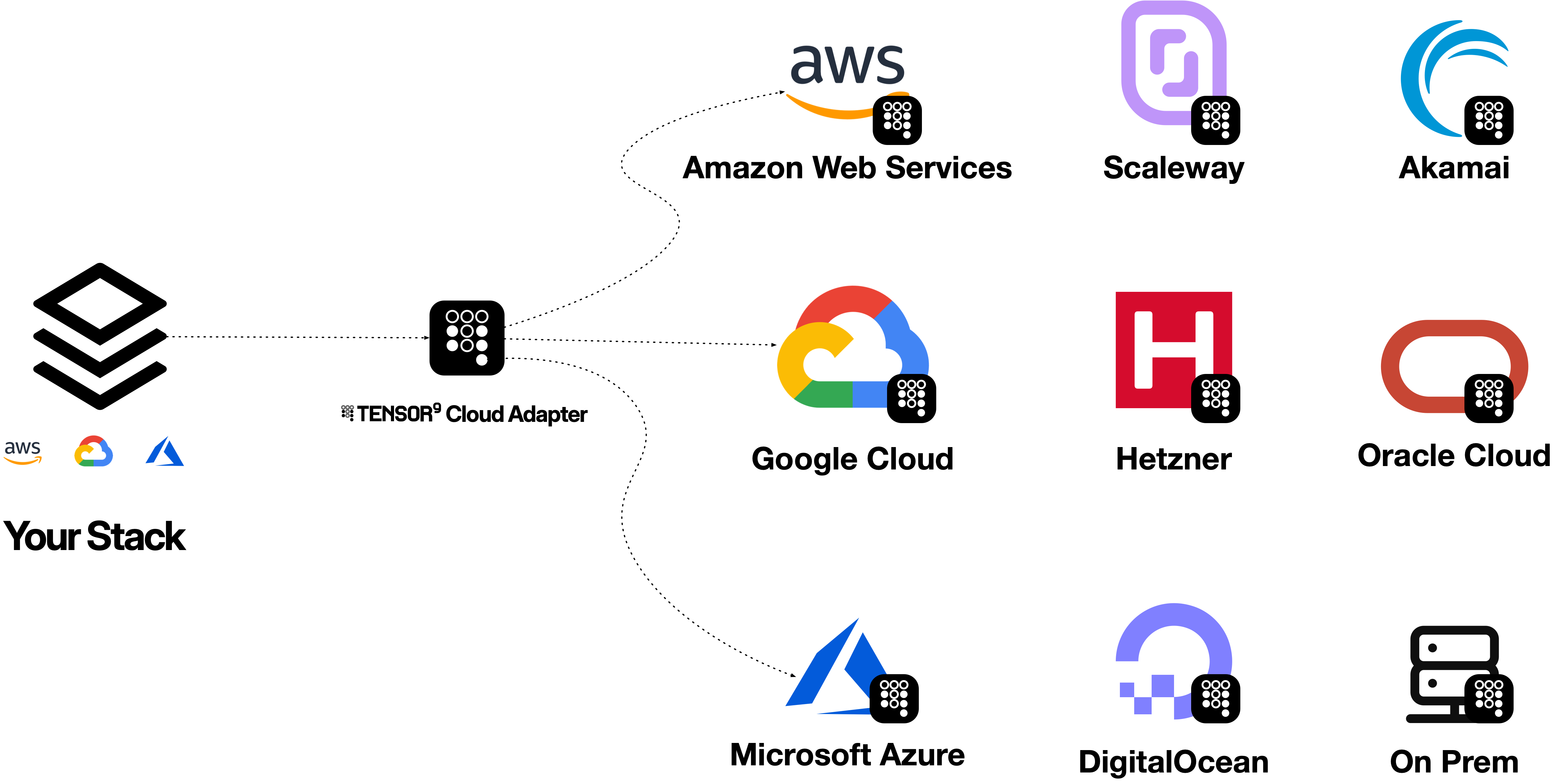
Who Cloud Adapter is for
Cloud Adapter is for software vendors and enterprises that want the freedom to choose their cloud while keeping the cloud integrations they already have.- Software vendors expanding into new marketplaces. Reach customers in additional cloud marketplaces by running your product in those environments, while keeping its existing cloud integrations.
- Software vendors reducing infrastructure costs. Move your product to a lower-cost cloud or choose a more cost-effective backend for individual services, while retaining your existing SDKs, CLI commands and Terraform configurations.
- Enterprises using multiple clouds to control costs. Choose the cloud and backend that offer the best economics for each workload. Keep the APIs your applications already use across those environments, so each cloud choice does not require a separate application integration.
- Vendors deploying into customer environments. Offer the same product in a customer’s chosen cloud or on-prem environment, including deployments driven by data-location requirements.
Request access
We have a backlog of customers and are ramping up capacity. Request access to discuss your workload with Tensor9.How it works
- Choose what to emulate and where to run it. Select the cloud APIs your software uses and the backend services that will provide them in the new environment.
- Point your existing tools at Cloud Adapter. Configure the adapter endpoint in your SDK, CLI or Terraform provider, along with the application credentials.
- Run your software. Cloud Adapter translates supported API calls to the selected backend and returns responses in the format your application expects.
Request and response architecture
Your application sends familiar cloud API requests to Cloud Adapter. The adapter calls the chosen backend services and translates their responses back for your application.

Use a standard SDK
Use the standard, unmodified SDK for the cloud your software was built for. Configure the adapter endpoint using the SDK’s normal endpoint option; request signing and response parsing continue to use that cloud’s API. For example, the standard AWS SDK for Python, boto3, can write the same object through the S3 API. Configure your region and origin-side credentials through the normal AWS credential chain before running this example. With the selected S3-to-Cloud Storage profile and bucket configured:endpoint_url and path-style S3 addressing are standard SDK configuration. No SDK fork or custom request format is required for this example. The same operation and service-pair limitations apply to SDK and CLI requests.
Examples with the AWS CLI
Before trying either example, the adapter must be running, its endpoint and origin-side credentials must be configured, and the named target resources must exist. SetT9_CLOUD_ADAPTER_ENDPOINT to your adapter endpoint. The commands below use illustrative resource names.
Store an object in Google Cloud Storage using S3
With S3 mapped to Google Cloud Storage, send an S3PutObject request:
Read an Azure Cosmos DB item using DynamoDB
For a DynamoDB table mapped to provisioned Azure Cosmos DB, send a supportedGetItem request:
Use Terraform or OpenTofu
Terraform and OpenTofu use a cloud provider’s normal API calls. Configure the provider to send supported service calls to Cloud Adapter, which translates them to your chosen backends. You keep the provider and its familiar resource definitions. For an existing test bucket using S3 backed by Google Cloud Storage, the AWS provider’s standardendpoints setting directs S3 calls to the adapter. This configuration fragment comes from the bounded S3 example for AWS provider 5.100.0; adapter_endpoint is the endpoint of your running adapter:
skip_* options keep that provider version’s startup checks from contacting metadata, region validation or AWS STS outside the configured S3 route; they do not disable Cloud Adapter authentication. Reassess the provider’s API calls before changing versions.
Start with an isolated workspace and an existing test bucket. Check the exact resource lifecycle you need, including create, read, refresh and delete, through both the origin API and the target service. Changing a provider endpoint is not application-data migration and can affect refresh or replacement plans. Verify behavior before redirecting a production workspace.
Get started with Cloud Adapter
Install the Tensor9 CLI with Homebrew:tensor9 adapt svc run workflow. Full deployments use tensor9 adapt cloud install to prepare the target-cloud fabric that hosts the serving image, with configuration, networking and credentials prepared for that environment.
The local container launcher is pending. The Homebrew commands above install the CLI; they do not deploy a running adapter or establish production readiness. Confirm supported operations and verify one bounded request before expanding the workload.
Connect locally for development and testing
Once your early-access Cloud Adapter installation is running, keep your application, debugger and tests on your laptop. Open a tunnel to the installation using the directory printed byadapt cloud install, and leave this terminal running:
http://127.0.0.1:65534 to your installed Cloud Adapter and its configured cloud backends. The application runs locally; target resources and cloud billing remain in your development project or subscription.
connect without --forward or --env prints instructions. Ctrl-C stops the tunnel and leaves the installation running for your next session. Use a dedicated development shell and test resources so these endpoint and profile settings stay separate from other workloads.
Request access
We have a backlog of customers and are ramping up capacity. Request access to discuss your workload with Tensor9.Supported services
The table below shows AWS API mappings as a concrete service catalog. Each row is a distinct backend option; a cloud icon identifies an environment where it is offered. A dash (-) means that backend is not offered for that environment. A mapping does not promise every API operation. Availability and behavior depend on the selected service profile, release and your account’s entitlements. The Preview labels apply to the indicated target environments, not to individual AWS services. On-prem refers to Kubernetes-based deployments in the catalog. Scroll horizontally to compare all six environments. Backend names are the human-readable names from the directed service profiles.| Origin Service | Backend Service | Preview | Preview | Preview | Preview | ||
|---|---|---|---|---|---|---|---|
| ACM (certificates) | - | ||||||
| ACM (certificates) | - | - | - | - | - | ||
| ACM (certificates) | - | - | - | - | - | ||
| ACM (certificates) | - | - | - | - | - | ||
| ACM Private CA | - | ||||||
| ACM Private CA | - | - | - | - | - | ||
| ACM Private CA | - | - | - | - | - | ||
| API Gateway v2 (HTTP/WebSocket) | - | - | - | ||||
| API Gateway v2 (HTTP/WebSocket) | - | - | - | - | - | ||
| API Gateway v2 (HTTP/WebSocket) | - | - | - | - | - | ||
| AWS IAM | |||||||
| AWS IAM | - | - | - | - | - | ||
| AWS IAM | - | - | - | - | - | ||
| AWS IAM | - | - | - | - | - | ||
| Amazon MQ RabbitMQ Cluster | Bitnami RabbitMQ | ||||||
| Amazon MQ RabbitMQ Single | Bitnami RabbitMQ | ||||||
| AppConfig | Flagsmith | - | |||||
| AppConfig | - | - | - | - | - | ||
| Application Load Balancer | - | - | - | - | - | ||
| Application Load Balancer | - | - | - | - | - | ||
| Application Load Balancer | - | - | - | - | - | ||
| Application Load Balancer | - | - | - | - | - | ||
| Application Load Balancer | - | - | - | - | - | ||
| Aurora PostgreSQL | - | - | - | - | - | ||
| Aurora PostgreSQL | - | - | - | - | - | ||
| Aurora PostgreSQL | - | - | - | - | - | ||
| Aurora PostgreSQL | - | - | - | - | - | ||
| Aurora PostgreSQL | - | - | - | - | - | ||
| Aurora PostgreSQL | - | - | - | - | - | ||
| Aurora PostgreSQL | - | - | - | - | |||
| Aurora PostgreSQL | - | - | - | - | - | ||
| Bedrock (LLM inference) | vLLM / Ollama | - | |||||
| Bedrock (LLM inference) | - | - | - | - | - | ||
| Bedrock (LLM inference) | - | - | - | - | - | ||
| Bedrock (LLM inference) | - | - | - | - | - | ||
| Bedrock (LLM inference) | - | - | - | - | - | ||
| Bedrock (LLM inference) | - | - | - | - | - | ||
| Bedrock (LLM inference) | - | - | - | - | - | ||
| CloudFront | - | - | - | - | - | ||
| CloudFront | - | - | - | - | - | ||
| CloudFront | - | - | - | - | - | ||
| CloudFront | - | - | - | - | - | ||
| CloudFront | - | - | - | - | - | ||
| CloudTrail | - | - | |||||
| CloudTrail | - | - | - | - | - | ||
| DocumentDB (MongoDB) | Percona MongoDB | - | |||||
| DocumentDB (MongoDB) | MongoDB Atlas | ||||||
| DocumentDB (MongoDB) | - | - | - | - | - | ||
| DocumentDB (MongoDB) | - | - | - | - | - | ||
| DocumentDB (MongoDB) | - | - | - | - | - | ||
| DocumentDB (MongoDB) | - | - | - | - | - | ||
| DynamoDB | - | - | - | ||||
| DynamoDB | - | - | - | - | - | ||
| DynamoDB | - | - | - | - | - | ||
| DynamoDB | - | - | - | - | - | ||
| DynamoDB | - | - | - | - | - | ||
| DynamoDB | - | - | - | - | - | ||
| DynamoDB | - | - | - | - | - | ||
| DynamoDB | - | - | - | - | - | ||
| DynamoDB | - | - | - | - | - | ||
| EC2 | - | - | - | - | - | ||
| EC2 | - | - | - | - | - | ||
| EC2 | - | - | - | - | - | ||
| EC2 | - | - | - | - | - | ||
| EC2 | - | - | - | - | - | ||
| EC2 | - | - | - | - | - | ||
| EC2 Auto Scaling | - | - | - | - | - | ||
| EC2 Auto Scaling | - | - | - | - | - | ||
| EC2 Auto Scaling | - | - | - | - | - | ||
| EC2 Auto Scaling | - | - | - | - | - | ||
| EC2 Auto Scaling | - | - | - | - | - | ||
| ECR | - | - | - | - | - | ||
| ECR | - | - | - | - | - | ||
| ECR | - | - | - | - | - | ||
| ECR | - | - | - | - | - | ||
| ECR | - | - | - | - | - | ||
| ECR | - | - | - | - | - | ||
| ECR | Harbor Registry | - | - | - | - | - | |
| ECR | - | - | - | - | - | ||
| ECR Public | - | - | - | - | - | ||
| ECR Public | - | - | - | - | - | ||
| ECR Public | - | - | - | - | - | ||
| ECR Public | - | - | - | - | - | ||
| ECR Public | - | - | - | - | - | ||
| ECR Public | Harbor | - | - | - | - | - | |
| ECR Public | - | - | - | - | - | ||
| ECS | - | - | - | ||||
| ECS | - | - | - | - | - | ||
| ECS | - | - | - | - | - | ||
| ECS | - | - | - | - | - | ||
| ECS | - | - | - | - | - | ||
| EFS | - | - | - | ||||
| EFS | - | - | - | - | - | ||
| EFS | - | - | - | - | - | ||
| EFS | - | - | - | - | - | ||
| EKS | - | - | - | ||||
| EKS | - | - | - | - | - | ||
| EKS | - | - | - | - | - | ||
| EKS | - | - | - | - | - | ||
| EKS | - | - | - | - | - | ||
| EKS IRSA | |||||||
| EKS IRSA | - | - | - | - | - | ||
| EKS Pod Identity | |||||||
| EKS Pod Identity | - | - | - | - | - | ||
| ElastiCache (Valkey/Redis) | - | - | - | - | |||
| ElastiCache (Valkey/Redis) | - | - | - | - | - | ||
| ElastiCache (Valkey/Redis) | - | - | - | - | - | ||
| ElastiCache (Valkey/Redis) | - | - | - | - | - | ||
| ElastiCache Serverless (Valkey/Redis) | - | - | - | - | - | ||
| EventBridge | |||||||
| EventBridge | - | - | - | - | - | ||
| EventBridge | - | - | - | - | - | ||
| EventBridge | - | - | - | - | - | ||
| EventBridge | - | - | - | - | - | ||
| EventBridge | - | - | - | - | - | ||
| GuardDuty | - | - | - | - | - | ||
| GuardDuty | - | - | - | - | - | ||
| GuardDuty | - | - | - | - | - | ||
| GuardDuty Detector | - | - | - | - | - | ||
| GuardDuty Detector | - | - | - | - | - | ||
| KMS | HashiCorp Vault Transit | - | - | - | |||
| KMS | - | - | - | - | - | ||
| KMS | Cloud Adapter deployment-hosted software keys | - | - | - | |||
| KMS | - | - | - | - | - | ||
| KMS | - | - | - | - | - | ||
| KMS | - | - | - | - | - | ||
| Kinesis Data Firehose | Strimzi Kafka | - | - | ||||
| Kinesis Data Firehose | - | - | - | - | - | ||
| Kinesis Data Firehose | - | - | - | - | - | ||
| Kinesis Data Firehose | - | - | - | - | - | ||
| Kinesis Data Firehose | - | - | - | - | - | ||
| Kinesis Data Stream | Strimzi Kafka | - | - | ||||
| Kinesis Data Stream | - | - | - | - | - | ||
| Kinesis Data Stream | - | - | - | - | - | ||
| Kinesis Data Stream | - | - | - | - | - | ||
| Kinesis Data Stream | - | - | - | - | - | ||
| Kinesis Data Stream | - | - | - | - | - | ||
| Lambda | - | - | - | ||||
| Lambda | Knative Service | - | - | - | - | ||
| Lambda | - | - | - | - | - | ||
| Lambda | - | - | - | - | - | ||
| Lambda | - | - | - | - | - | ||
| Lambda | - | - | - | - | - | ||
| Lambda | - | - | - | - | - | ||
| Lambda | - | - | - | - | - | ||
| Lambda | - | - | - | - | - | ||
| Lambda | - | - | - | - | - | ||
| Lambda Event Source Mapping | - | - | - | - | - | ||
| Lambda Event Source Mapping | - | - | - | - | - | ||
| MSK (Kafka) | Strimzi Kafka | - | - | ||||
| MSK (Kafka) | Bitnami Kafka | - | - | - | |||
| MSK (Kafka) | Apache Kafka | - | - | - | - | ||
| MSK (Kafka) | - | - | - | - | - | ||
| MSK (Kafka) | - | - | - | - | - | ||
| MSK (Kafka) | - | - | - | - | - | ||
| MSK (Kafka) | - | - | - | - | - | ||
| MSK (Kafka) | - | - | - | - | - | ||
| MemoryDB | - | - | - | - | |||
| MemoryDB | - | - | - | - | - | ||
| MemoryDB | - | - | - | - | - | ||
| MemoryDB | - | - | - | - | - | ||
| MemoryDB | - | - | - | - | - | ||
| Network Firewall | - | - | - | - | - | ||
| Network Firewall | - | - | - | - | - | ||
| Network Firewall | - | - | - | - | - | ||
| Network Load Balancer | - | - | - | - | - | ||
| Network Load Balancer | - | - | - | - | - | ||
| Network Load Balancer | - | - | - | - | - | ||
| Network Load Balancer | - | - | - | - | - | ||
| Network Load Balancer | - | - | - | - | - | ||
| OpenSearch Domain | - | ||||||
| OpenSearch Domain | - | - | - | - | - | ||
| OpenSearch Domain | - | - | - | - | - | ||
| OpenSearch Domain | - | - | - | - | - | ||
| OpenSearch Domain | - | - | - | - | |||
| OpenSearch Domain | - | - | - | - | |||
| OpenSearch Domain | - | - | - | - | - | ||
| OpenSearch Domain | - | - | - | - | - | ||
| RDS MySQL | - | - | - | - | - | ||
| RDS MySQL | - | - | - | - | - | ||
| RDS MySQL | - | - | - | - | - | ||
| RDS MySQL | - | - | - | - | - | ||
| RDS MySQL | Percona XtraDB Cluster (MySQL) | - | - | - | - | ||
| RDS MySQL | - | - | - | - | - | ||
| RDS PostgreSQL | - | - | - | - | - | ||
| RDS PostgreSQL | - | - | - | - | - | ||
| RDS PostgreSQL | - | - | - | - | - | ||
| RDS PostgreSQL | - | - | - | - | - | ||
| RDS PostgreSQL | - | - | - | - | - | ||
| RDS PostgreSQL | - | - | - | - | |||
| RDS PostgreSQL | - | - | - | - | - | ||
| Route 53 | - | - | - | - | |||
| Route 53 | - | - | - | - | - | ||
| Route 53 | - | - | - | - | - | ||
| Route 53 | - | - | - | - | - | ||
| Route 53 | - | - | - | - | - | ||
| Route 53 | - | - | - | - | - | ||
| Route 53 Resolver | - | - | - | - | |||
| Route 53 Resolver | - | - | - | - | - | ||
| Route 53 Resolver | - | - | - | - | - | ||
| Route 53 Resolver | - | - | - | - | - | ||
| S3 | - | - | - | - | - | ||
| S3 | - | - | - | - | - | ||
| S3 | - | - | - | - | - | ||
| S3 | - | - | - | - | - | ||
| S3 | MinIO Storage | - | - | - | - | - | |
| S3 | - | - | - | - | - | ||
| SNS | - | ||||||
| SNS | - | - | - | - | - | ||
| SNS | - | - | - | - | - | ||
| SNS | - | - | - | - | - | ||
| SNS | - | - | - | - | - | ||
| SNS | - | - | - | - | - | ||
| SQS (FIFO) | - | ||||||
| SQS (FIFO) | - | - | - | - | - | ||
| SQS (FIFO) | - | - | - | - | - | ||
| SQS (FIFO) | - | - | - | - | - | ||
| SQS (FIFO) | - | - | - | - | - | ||
| SQS (FIFO) | - | - | - | - | - | ||
| SQS (Standard) | - | ||||||
| SQS (Standard) | - | - | - | - | - | ||
| SQS (Standard) | - | - | - | - | - | ||
| SQS (Standard) | - | - | - | - | - | ||
| SQS (Standard) | - | - | - | - | - | ||
| SQS (Standard) | - | - | - | - | - | ||
| SQS (Standard) | - | - | - | - | - | ||
| SQS (Standard) | - | - | - | - | - | ||
| SQS (Standard) | - | - | - | - | - | ||
| SQS (Standard) | - | - | - | - | - | ||
| SageMaker (Inference) | Your inference container | - | - | - | - | ||
| Secrets Manager | - | - | - | - | |||
| Secrets Manager | - | - | - | - | - | ||
| Secrets Manager | - | - | - | - | - | ||
| Secrets Manager | - | - | - | - | - | ||
| Secrets Manager | - | - | - | - | - | ||
| Step Functions | Temporal (Self-Hosted) | ||||||
| Step Functions | - | - | - | - | - | ||
| Step Functions | Temporal Cloud (Managed) | - | - | ||||
| Step Functions | - | - | - | - | - | ||
| Systems Manager (SSM) | Kubernetes Secrets | - | - | - | - | ||
| Systems Manager (SSM) | - | - | - | - | - | ||
| Systems Manager (SSM) | - | - | - | - | - | ||
| Systems Manager (SSM) | - | - | - | - | - | ||
| Systems Manager (SSM) | - | - | - | - | - | ||
| Systems Manager (SSM) | - | - | - | - | - | ||
| Transfer Family (SFTP) | SFTP | ||||||
| VPC | - | - | - | - | - | ||
| VPC | - | - | - | - | - | ||
| VPC | - | - | - | - | - | ||
| VPC | Existing Kubernetes network | - | - | - | - | - | |
| VPC | - | - | - | - | - | ||
| VPC Flow Logs | - | - | - | - | - | ||
| WAFv2 | - | - | - | - | - | ||
| WAFv2 | - | - | - | - | - |