

- Create your Tensor9 account and set up a Tensor9 BYOC control plane in your AWS account.
- Create an app and bind a TF workspace as its origin stack.
- Onboard a customer and release your app to their appliance.
- Release infrastructure changes.
Prerequisites
- A Google account to sign up for Tensor9.
-
Create an AWS account for Tensor9 BYOC. We will refer to this as the Tensor9 BYOC AWS account.
Important:
- Your Tensor9 BYOC AWS account should be a dedicated AWS account used only for Tensor9 BYOC. This reduces the risk of conflicts between your app deployed in a Tensor9 BYOC appliance and any other software, infrastructure, or resources you might have in a general-purpose AWS account.
- Tensor9 BYOC sets up your control plane in the AWS
us-west-2(US West, Oregon) region. Other regions are not available yet.
-
Install AWS CLI in your environment, and set up an AWS CLI profile that has admin permissions to your new AWS account. This guide calls it
my-vendor-aws. - A second AWS account to act as your first customer. You will open the customer setup link while signed in to this account.
Install OpenTofu or Terraform
In your environment, you’ll need to install Terraform/OpenTofu CLI. This guide assumes you are using OpenTofu and uses thetofu command throughout.
Create your account and control plane
-
Follow Get a Tensor9 API key to sign up and install the
tensor9CLI. - Export your API key and set up your control plane in your new AWS account (about 10 minutes):
-region us-west-2 if your AWS configuration defaults to another region. Setup makes its controller profile your CLI default, so the commands below need no API key or profile options.
- Create a new Tensor9 BYOC app.
displayName field must be 32 characters or fewer.
Publish your TF and bind it to your new app
Tensor9 BYOC works by compiling your TF for each appliance you want to deploy to. So, your next step is to publish your TF to your Tensor9 BYOC control plane and bind it to your app.tensor9 stack publish-direct does both in one step:
.tf files in -dir, uploads them through your control plane and binds the stack to tofu-quickstart under the name your-stack. It authenticates with your controller profile, so it needs no AWS credentials. When it finishes, it prints a summary such as:
-stackName, the command updates the stack and keeps the existing binding.
Onboard a customer
Customers install your app in their own cloud accounts through a setup link. In this guide, your second AWS account acts as the customer.- Create a form factor that lets customers install your app in AWS:
- Create a setup link for your customer:
acme-corp if it does not exist yet and prints the customer’s setup link.
- Sign in to the AWS console of your customer AWS account, then open the setup link in the same browser. Follow the setup wizard to choose the environment, then download and apply the infrastructure templates in the customer account. The customer installation guide describes each step.
-
View the output of
tensor9 reportto determine when the customer’s appliance is ready for a release. While the appliance is creating,tensor9 reportdisplays output such as:

tensor9 report displays output such as:
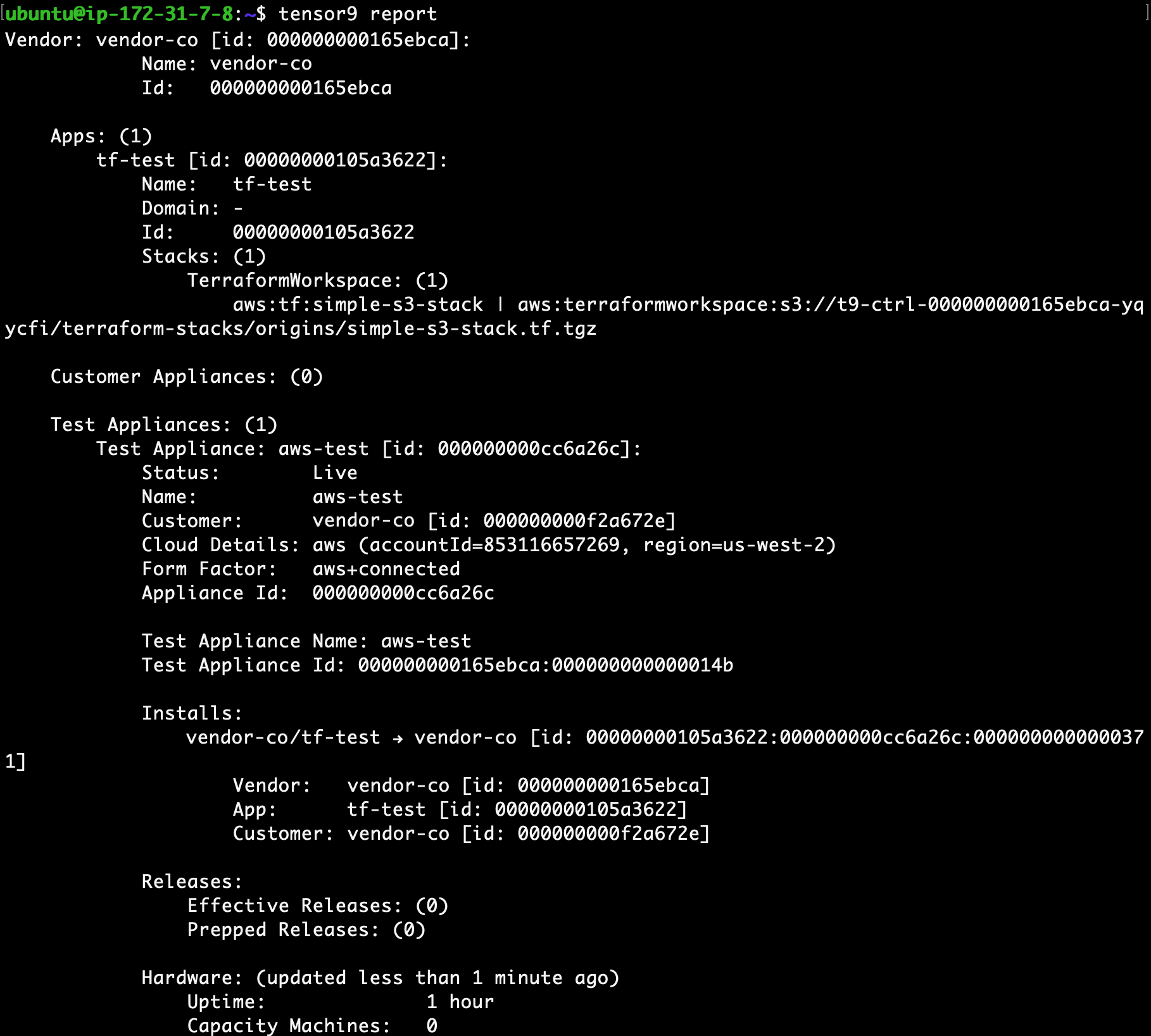
Release to your customer
- Create a release for your customer:
<APPLIANCE_NAME>/your-stack/, using the appliance name and the -stackName you published with. The release output prints the directory.
- Change into the new directory that contains the deployment stack for your customer’s appliance:
- Deploy as normal by running
tofu initfollowed bytofu apply.
T9_API_KEY environment variable. In the workspace directory, enter the key at a hidden prompt, apply the stack, then unset the variable:
- Bash
- Zsh
T9_API_KEY as soon as the apply finishes: while it is set, tensor9 CLI commands use the key instead of your controller profile. Do not put the key in a command, a shell profile or a source file.
- Run
tofu showto review the resulting created resources.
Debug a service-adapter request in the customer appliance
If the deployed application uses an origin-cloud API through a service adapter, record the app, appliance, release, selected service mapping and operation, then follow Debugging Service Adapters. Inspect the directed profile before sending another request, and use a hypothetical explanation where the selected operation supports it. Do not repeat a mutating request until you have checked whether the first request changed the target resource.Release an infrastructure change
You can release infrastructure changes to your stack at any time.- Update your origin stack with any desired change. For example, you could enable versioning on the AWS S3 bucket that was created when initially publishing your origin stack.
- Re-publish the origin stack to Tensor9 BYOC, with the same
-stackName:
- Create a new release:
<APPLIANCE_NAME>/your-stack/. Run the commands below from the directory where you created the release.
- Change into the directory that contains the deployment stack for your customer’s appliance:
- Deploy as normal by running
tofu initfollowed bytofu apply, with your API key inT9_API_KEYfor this step only, as in the first release:
T9_API_KEY environment variable. In the workspace directory, enter the key at a hidden prompt, apply the stack, then unset the variable:
- Bash
- Zsh
T9_API_KEY as soon as the apply finishes: while it is set, tensor9 CLI commands use the key instead of your controller profile. Do not put the key in a command, a shell profile or a source file.
- Run
tofu showto review the resulting created resources.
Clean up
When you finish with this guide, remove what you created. You can do the following yourself today:- Remove the resources that your release deployed in the customer’s appliance. From the directory that contains the deployment stack,
<APPLIANCE_NAME>/your-stack, runtofu destroywith your API key inT9_API_KEYfor this step only:
- Bash
- Zsh
tofu destroy shows before you confirm it. Unset T9_API_KEY as soon as the command finishes, so that tensor9 commands keep using your controller profile.
- Unbind the stack from your app, so that no new releases are made from it:
tensor9 whoami reports, and the app and customer names. Do not delete control plane resources from your AWS account by hand.