


Overview
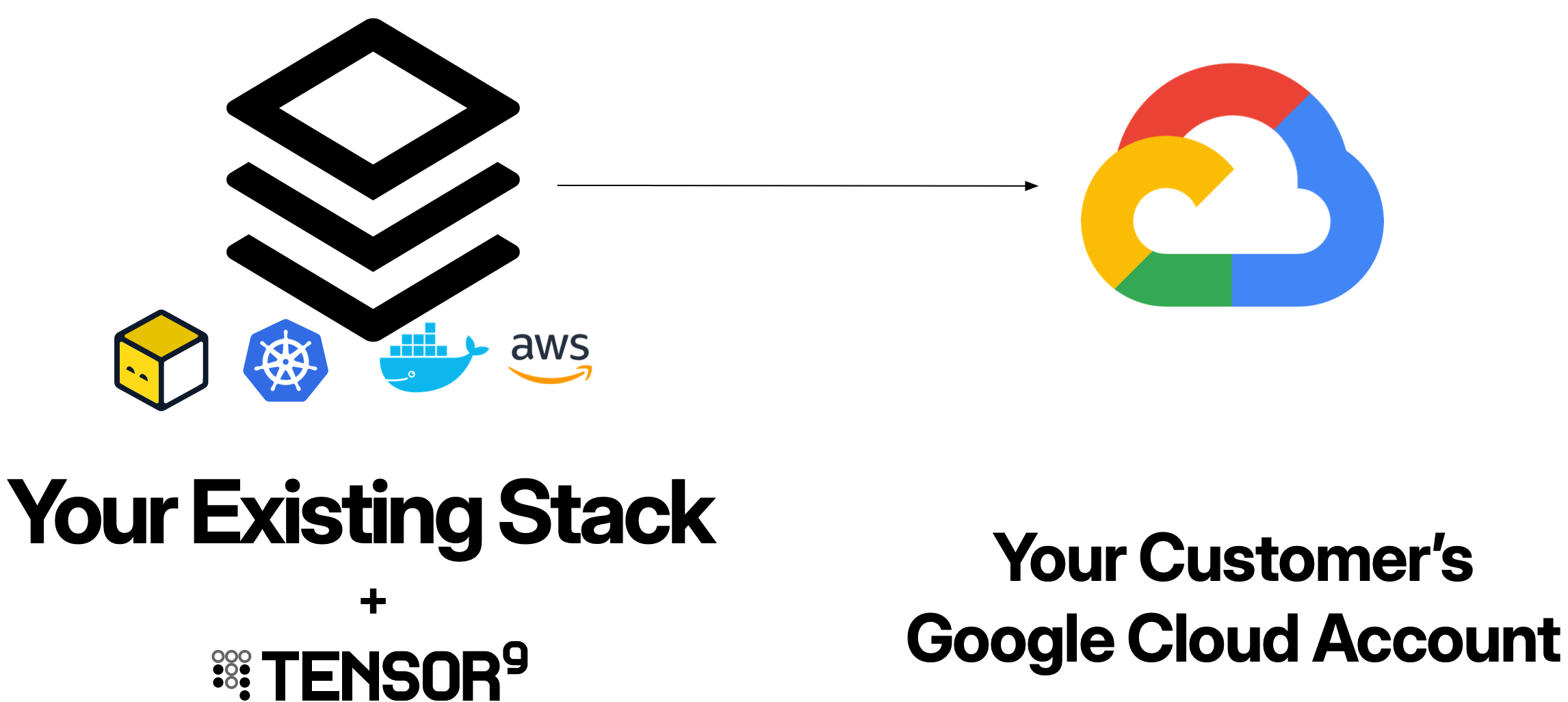
When you deploy an application to Google Cloud customer environments using Tensor9:- Customer appliances run entirely within the customer’s Google Cloud project
- Your control plane orchestrates deployments from your dedicated Tensor9 AWS account
- Service account impersonation enables your control plane to manage customer appliances with customer-approved permissions
- Service equivalents compile your origin stack into Google Cloud-native resources
Prerequisites
Before deploying appliances to Google Cloud customer environments, ensure:Your control plane
- Dedicated AWS account for your Tensor9 control plane
- Control plane installed - See Installing Tensor9
- Origin stack published - Your application infrastructure defined and uploaded
Customer Google Cloud project
Your customers must provide:- Google Cloud project where the appliance will be deployed
- Service accounts configured for the four-phase permissions model (Install, Steady-state, Deploy, Operate)
- VPC and networking configured according to their requirements
- Sufficient API quotas for your application’s resource needs
- Google Cloud region where they want the appliance deployed
Your development environment
- gcloud CLI installed and configured
- Terraform or OpenTofu (if using Terraform origin stacks)
- Docker (if deploying container-based applications)
How Google Cloud appliances work
Google Cloud appliances are deployed using Google Cloud-native services orchestrated by your Tensor9 control plane.1
Customer provisions service accounts
Your customer creates four service accounts in their Google Cloud project, each corresponding to a permission phase: Install, Steady-state, Deploy, and Operate. These service accounts define what your control plane can do within their environment.The customer configures IAM policies that allow your control plane’s service account to impersonate these service accounts with appropriate conditions (time windows, approval labels, etc.).
2
You create a release for the customer appliance
You create a release targeting the customer’s appliance:Your control plane compiles your origin stack into a deployment stack tailored for Google Cloud, compiling any non-Google Cloud resources to their Google Cloud service equivalents. The deployment stack downloads to your local environment.
3
Customer grants deploy access
The customer approves the deployment by granting temporary deploy access. This can be manual (updating IAM policy conditions) or automated (scheduled maintenance windows).Once approved, the Tensor9 controller in the appliance can impersonate the Deploy service account in the customer’s project.
4
You deploy the release
You run the deployment locally against the downloaded deployment stack:The deployment stack is configured to route resource creation through the Tensor9 controller inside the customer’s appliance. The controller impersonates the Deploy service account and creates all infrastructure resources in the customer’s Google Cloud project:
- VPCs, subnets, firewall rules
- Compute Engine instances, GKE clusters, Cloud Functions
- Cloud SQL databases, Cloud Storage buckets, Memorystore clusters
- Cloud Logging log sinks, service accounts, Cloud DNS records
- Any other Google Cloud resources defined in your origin stack
5
Steady-state observability begins
After deployment, your control plane uses the Steady-state service account to continuously collect observability data (logs, metrics, traces) from the customer’s appliance without requiring additional approvals.This data flows to your observability sink, giving you visibility into appliance health and performance.
Service equivalents
When you deploy an origin stack to Google Cloud customer environments, Tensor9 automatically compiles resources from other cloud providers to their Google Cloud equivalents. This allows you to maintain a single origin stack and deploy it across different customer environments.How service equivalents work
When compiling a deployment stack for Google Cloud:- AWS resources are compiled - AWS resources are converted to their Google Cloud equivalents
- Generic resources are adapted - Cloud-agnostic resources (like Kubernetes manifests) are adapted for Google Cloud
- Configuration is adjusted - Resource configurations are modified to match Google Cloud conventions and best practices
Common service equivalents
Some popular AWS services (EC2, DynamoDB, EFS) are not currently supported. See Unsupported AWS services for the full list and recommended alternatives.
Example: Compiling an AWS origin stack
If your origin stack defines a Lambda function:Permissions model
Google Cloud appliances use a four-phase service account permissions model that balances operational capability with customer control.The four permission phases
Service account structure
Each service account is created in the customer’s Google Cloud project with IAM policies that allow your control plane to impersonate it. Example: Deploy service account with conditional access- The
deploy_accesslabel is set to “enabled” - The current time is within the allowed window
- Can read observability data from resources labeled with the appliance’s
instance-id - Cannot modify, delete, or terminate any resources
- Cannot change IAM policies
Deployment workflow with service accounts
1
Customer grants deploy access
Customer approves a deployment by setting the
deploy_access label to “enabled” and defining a time window. This can be done manually or through automated approval workflows.2
You execute deployment locally
You run the deployment locally against the downloaded deployment stack:The deployment stack is configured to route resource creation through the Tensor9 controller in the appliance.
3
Controller impersonates Deploy service account and creates resources
For each resource Terraform attempts to create, the Tensor9 controller inside the appliance impersonates the Deploy service account and creates the resource in the customer’s project.All infrastructure changes occur within the customer’s project using their Deploy service account permissions.
4
Deploy access expires
After the time window expires, the Deploy service account can no longer be impersonated. Your control plane automatically reverts to using only the Steady-state service account for observability.
Networking
Google Cloud appliances use an isolated networking architecture with a Tensor9 controller that manages communication with your control plane.Tensor9 controller VPC
When an appliance is deployed, Tensor9 creates an isolated VPC containing the Tensor9 controller. This VPC is configured with:- Cloud NAT: Provides outbound internet connectivity
- Route to control plane: Establishes a secure channel to your Tensor9 control plane
- No ingress firewall rules: The controller VPC does not accept inbound connections - all communication is outbound-only
- Receive deployments: Deployment stacks are pushed from your control plane to the appliance
- Configure observability pipeline: Set up log, metric, and trace forwarding to your observability sink
- Receive operational commands: Execute remote operations initiated from your control plane
Outbound-only security model
The Tensor9 controller in your customer’s appliance is designed to only make outbound connections and not require ingress ports to be opened in your customer’s network perimeter:Application VPC topology
Your application resources run in their own VPC(s), completely separate from the Tensor9 controller VPC. The application VPC topology is defined entirely by your origin stack - whatever VPC resources you define in your origin stack will be deployed into the appliance. Example: Application VPC with internet-facing load balancer If your origin stack defines an AWS VPC with public subnets and a load balancer, that topology will compile to Google Cloud VPC resources in the customer’s appliance:Resource naming and labeling
All Google Cloud resources should use theinstance_id variable to ensure uniqueness across multiple customer appliances.
Parameterization pattern
Required labels
Label all resources withinstance-id to enable permissions scoping and observability:
instance-id label:
- Enables IAM condition expressions to scope permissions to specific appliances
- Allows Cloud Logging filters to isolate telemetry by appliance
- Helps customers track costs per appliance
- Facilitates resource discovery by Tensor9 controllers
Observability
Google Cloud appliances provide comprehensive observability through Cloud Logging, Cloud Monitoring, and Cloud Trace.Cloud Logging
Application and infrastructure logs flow to Cloud Logging:Cloud Monitoring
Infrastructure metrics are automatically collected:- Compute Engine: CPU utilization, network I/O, disk I/O
- Cloud SQL: Database connections, query latency, storage usage
- Cloud Functions: Invocations, execution time, errors
- GKE: Node CPU/memory, pod counts, API server metrics
- Cloud Load Balancing: Request counts, latency, HTTP status codes
Cloud Trace
Enable distributed tracing for Cloud Functions and containerized applications:Cloud Audit Logs
All API calls within the customer’s Google Cloud project are logged to Cloud Audit Logs, providing a complete audit trail of what your control plane does:- Service account impersonations
- Resource creation, modification, deletion
- Permission denials
- Configuration changes
Artifacts
Google Cloud appliances automatically provision private artifact repositories to store container images and application files deployed by your deployment stacks.Container images (Artifact Registry)
When you deploy an appliance, Tensor9 automatically provisions a private Artifact Registry repository in the customer’s Google Cloud project to store your container images. Example: Origin stack with container service Your AWS origin stack references container images from your vendor’s Amazon ECR:- Detects the container image reference in your ECS task definition
- Provisions a private Artifact Registry repository in the appliance (e.g.,
us-docker.pkg.dev/customer-project/myapp-000000007e/api) - Copies the container image from your vendor ECR registry to the appliance’s private Artifact Registry
- Rewrites the deployment stack to reference the appliance-local registry
- Deploy (tofu apply): Tensor9 copies the container image from your vendor registry to the appliance’s private registry
- Destroy (tofu destroy): Deleting the deployment stack also deletes the copied container artifact from the appliance’s private registry
Function source code
For Lambda functions in your AWS origin stack, Tensor9 automatically handles copying function source code to the customer’s Google Cloud environment:- Provisions a private Cloud Storage bucket in the appliance for function sources
- Copies the Lambda source archive from your vendor S3 bucket to the appliance’s Cloud Storage bucket
- Compiles the Lambda function to a Cloud Function with the appliance-local source reference
Secrets management
Store secrets in AWS Secrets Manager or AWS Systems Manager Parameter Store in your AWS origin stack, then pass them to your application as environment variables.Secret naming and injection
Always use parameterized secret names and inject them as environment variables:If your application dynamically fetches secrets using AWS SDK calls (e.g.,
boto3.client('secretsmanager').get_secret_value()), those calls will NOT be automatically mapped by Tensor9. Always pass secrets as environment variables.Operations
Perform remote operations on Google Cloud appliances using the Operate service account.kubectl on GKE
Execute kubectl commands against GKE clusters:gcloud CLI operations
Execute gcloud commands:Database queries
Execute SQL queries against Cloud SQL databases:Operations endpoints
Create temporary operations endpoints for interactive access:Example: Complete Google Cloud appliance
Here’s a complete example of a deployment stack for a Google Cloud appliance, compiled from an AWS origin stack:main.tf
variables.tf
outputs.tf
Best practices
Use instance_id for all resource names
Use instance_id for all resource names
Every Google Cloud resource with a name or identifier should include
${var.instance_id} to prevent conflicts across customer appliances:Label all resources with instance-id
Label all resources with instance-id
Apply the This enables:
instance-id label to every resource:- IAM condition expressions for permission scoping
- Cloud Logging and Monitoring filtering
- Cost tracking
- Resource discovery
Enable Cloud Logging for all services
Enable Cloud Logging for all services
Configure logging for Cloud Functions, GKE, Cloud SQL, and other services:This ensures observability data flows to your control plane.
Use AWS Secrets Manager for sensitive data
Use AWS Secrets Manager for sensitive data
Never hardcode secrets. Use AWS Secrets Manager or SSM Parameter Store with parameterized names in your AWS origin stack:Pass secrets to your application as environment variables. Runtime SDK calls to fetch secrets are not automatically mapped by Tensor9.
Troubleshooting
Deployment fails with permission errors
Deployment fails with permission errors
Symptom: Terraform apply fails with “Permission denied” or “403 Forbidden” errors.Solutions:
- Verify your control plane has successfully impersonated the Deploy service account
- Check the Deploy service account’s IAM roles include necessary permissions for the resources being created
- Ensure the impersonation policy allows your control plane’s service account
- Verify the
deploy_accesslabel is set and the time window hasn’t expired - Review Cloud Audit Logs in the customer project to see which specific API call was denied
Resources fail to create due to naming conflicts
Resources fail to create due to naming conflicts
Symptom: “Resource already exists” or “Name is already in use” errors during deployment.Solutions:
- Ensure all resource names include
${var.instance_id} - Verify the
instance_idvariable is being passed correctly - Check that no hardcoded resource names exist in your origin stack
- For Cloud Storage buckets, remember they must be globally unique - include both app name and instance_id
Observability data not flowing to control plane
Observability data not flowing to control plane
Symptom: Cloud Logging and Monitoring data aren’t appearing in your observability sink.Solutions:
- Verify the Steady-state service account has permissions to read logs and metrics
- Check that all resources are labeled with
instance-id - Ensure log sinks are configured correctly
- Verify resource names are parameterized and follow the expected pattern
- Check that the control plane is successfully impersonating the Steady-state service account
API quota limits exceeded
API quota limits exceeded
Symptom: “Quota exceeded” errors when creating resources.Solutions:
- Ask the customer to request quota increases from Google Cloud Console
- Consider deploying appliances in separate Google Cloud regions
- Ask the customer to review their current quota usage
- Ask the customer to clean up unused resources in their project
Private service connection failures for Cloud SQL
Private service connection failures for Cloud SQL
Symptom: Cloud SQL instance creation fails with VPC peering errors.Solutions:
- Ensure VPC has a private service connection allocated
- Verify the IP address range doesn’t conflict with existing ranges
- Check that
servicenetworking.googleapis.comAPI is enabled - Ensure the Deploy service account has
compute.networks.updatePolicypermission
Need help?
Need help?
If you’re experiencing issues not covered here or need additional assistance with Google Cloud deployments, we’re here to help:
- Slack: Join our community Slack workspace for real-time support
- Email: Contact us at [email protected]
Next steps
Now that you understand deploying to Google Cloud customer environments, explore these related topics:- Permissions Model: Deep dive into the four-phase permissions model
- Deployments: Learn how to create releases and deploy to customer appliances
- Operations: Execute remote operations on Google Cloud appliances
- Observability: Set up comprehensive monitoring and logging
- Terraform Origin Stacks: Write Terraform origin stacks optimized for Google Cloud